Full page screenshots, annotated and framed.
Capture exactly what you need — the whole page, an area or one element — then mark it up and present it in a browser frame, without leaving the tab.
Free forever · 7-day Pro trial, no card · Chrome, Edge, Brave, Opera, Arc, Comet, Firefox
In short
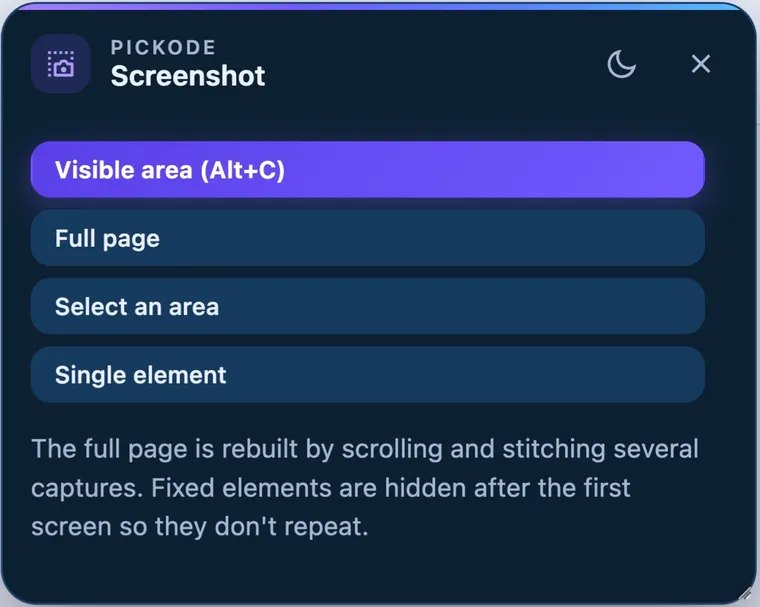
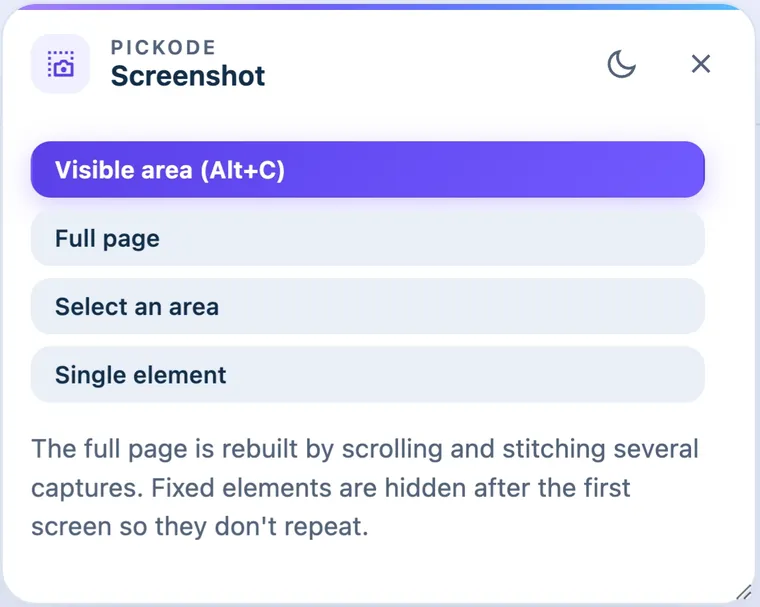
Pickode is a full page screenshot Chrome extension that also works in Edge, Brave, Opera, Arc, Comet and Firefox. Capture the visible area with Alt+C, the full page up to about 32,000px, a selected area or a single element; then annotate it with arrows, rectangles, highlighter, text and pixelation, and place it in a browser frame on a gradient background.
How it works
Screenshots in three steps.
 01
01Choose what to capture
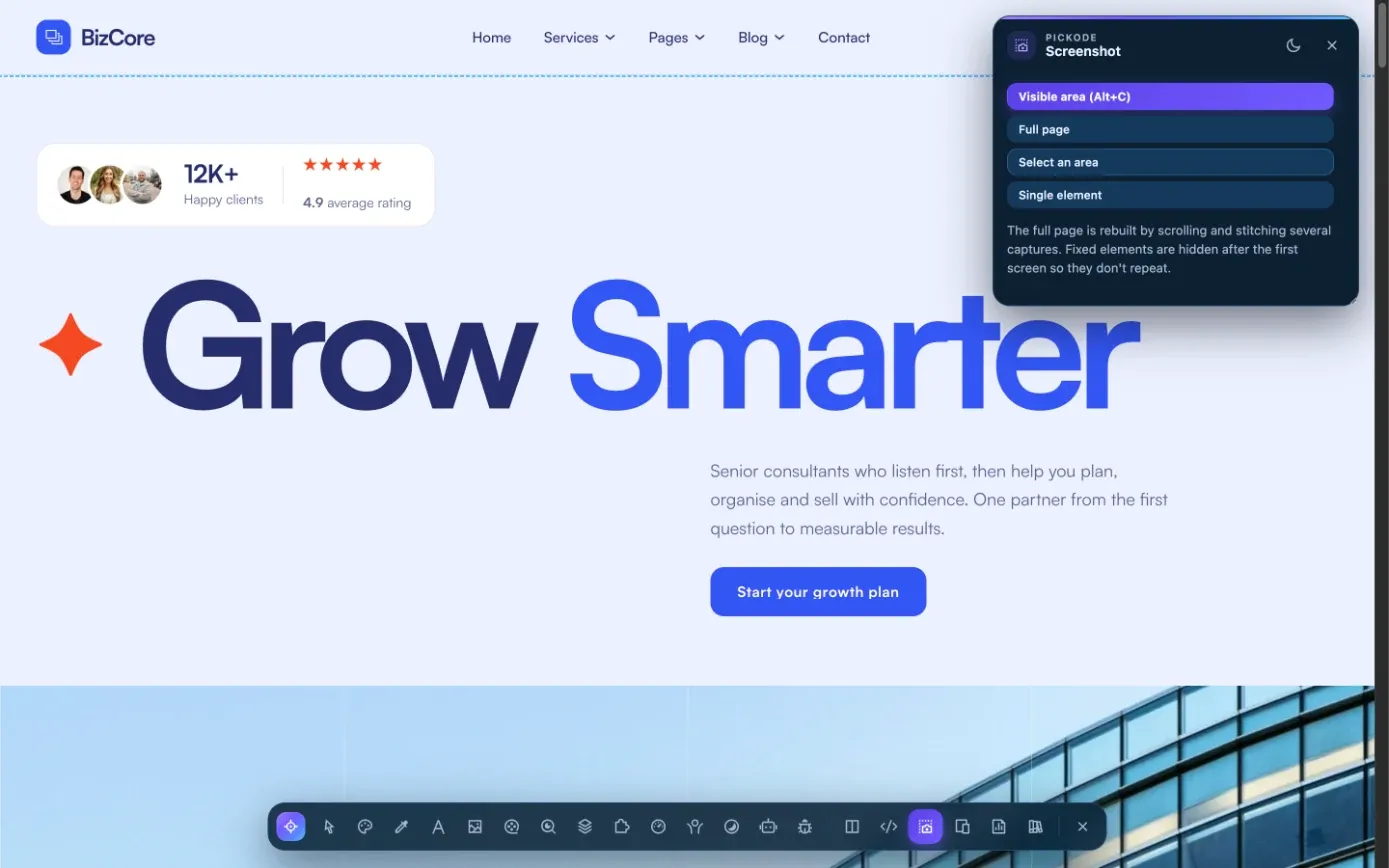
Press Alt+C for the visible area, or pick full page, area or element. From the inspector you can also screenshot the selected element.
 02
02Annotate in the editor
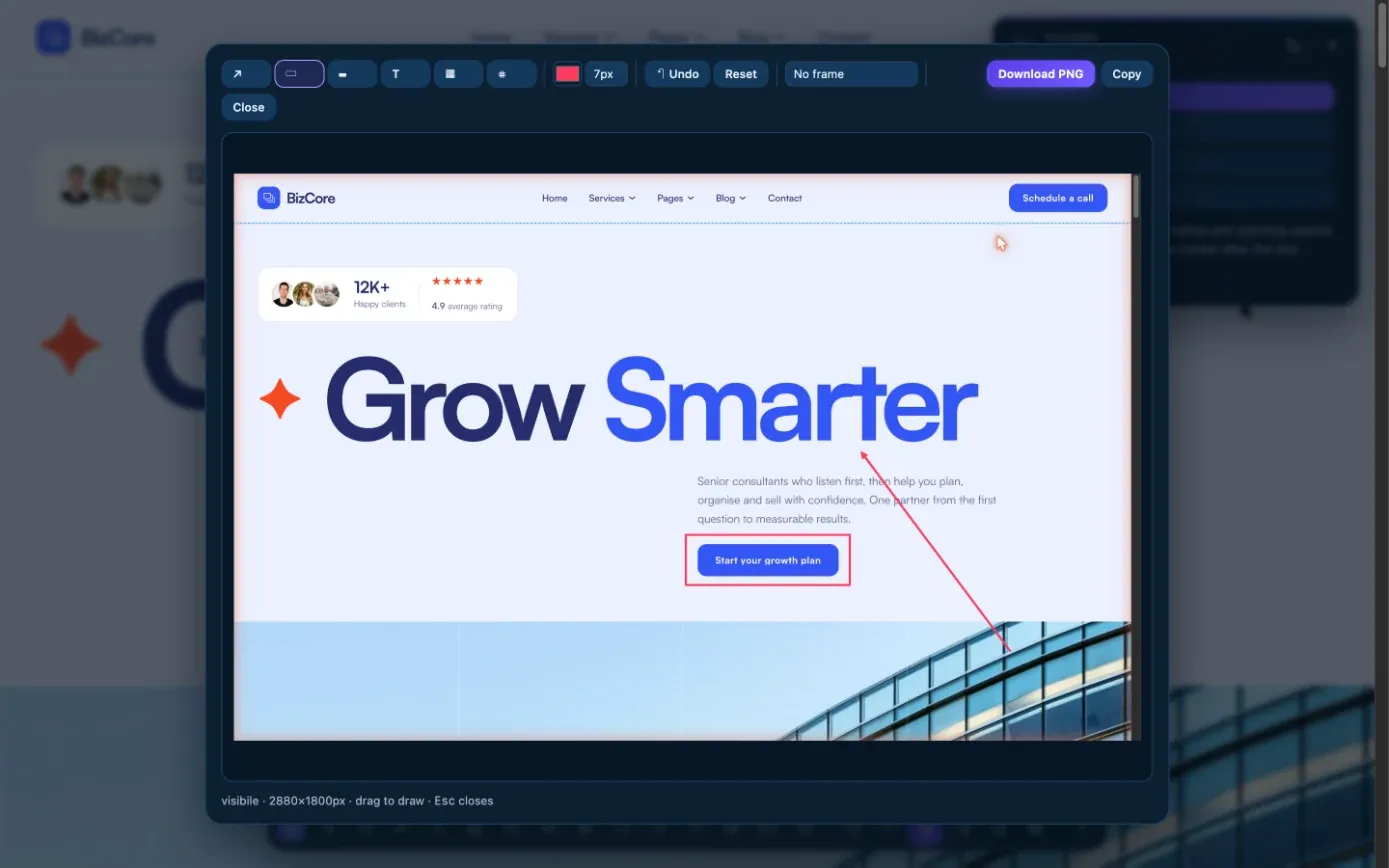
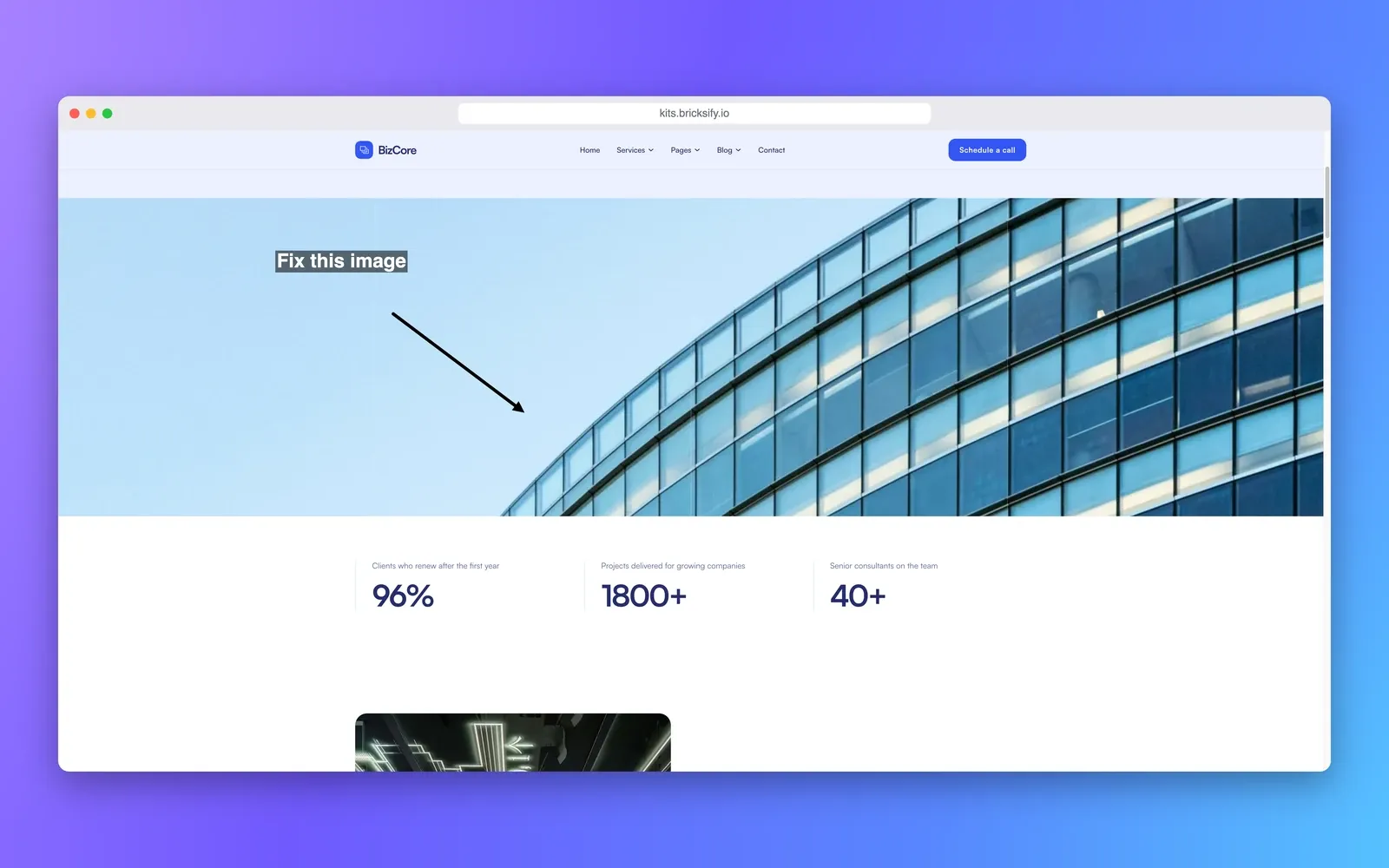
Add arrows, rectangles, highlights and text, pixelate sensitive details, crop, and undo any step.
 03
03Frame and download
Put the screenshot in a browser frame with a gradient background for a quick mockup, then download it.
What you get
One screenshot extension for capture, markup and mockups.
Four capture modes
Visible area, full page, a selected area or a single element, whichever the moment needs.
Long pages
Full-page screenshots up to about 32,000px tall, in one image.
Element screenshot
Capture one component exactly, straight from the inspector, without cropping by hand.
Screenshot editor
Arrow, rectangle, highlighter, text, pixelate, crop and undo, for feedback and bug reports.
Browser frame mockup
Wrap the capture in a browser frame on a gradient background, ready for a presentation or a post.
Chrome and Firefox
Works in Chrome, Edge, Brave, Opera, Arc, Comet and Firefox 140+, with the Alt+C shortcut.
Details
Capture modes and editor tools.
- Capture modes
- Visible area, full page, area, element
- Full page
- Up to about 32,000px tall
- Shortcut
- Alt+C captures the visible area
- Editor
- Arrow, rectangle, highlighter, text, pixelate, crop, undo
- Presentation
- Browser frame and gradient background
- Browsers
- Chrome, Edge, Brave, Opera, Arc, Comet, Firefox 140+
- Free
- Every capture mode — visible area, full page, area and element
- Pro
- Browser frames
Questions
Questions about Screenshots.
How do I take a full page screenshot in Chrome?
Open Pickode and choose the full-page screenshot. It captures the page up to about 32,000px tall in one image. Alt+C captures the visible area.
Can I screenshot a single element?
Yes. Choose the element mode, or select the element with the inspector (Alt+I) and take its screenshot from there.
Is there a free full page screenshot Chrome extension?
Yes: in Pickode every capture mode is free — visible area, full page, area and element. The editor is free too; Pro adds the browser frames.
Can I hide sensitive information?
Yes. The editor has a pixelate tool, along with arrow, rectangle, highlighter, text, crop and undo.
Does it work in Firefox?
Yes. Pickode works in Chrome, Edge, Brave, Opera, Arc, Comet and Firefox 140+.
Is there a keyboard shortcut for screenshots?
Alt+C captures the visible area. Full page, area and element captures start from the Pickode panel, and you can also screenshot an element from the inspector (Alt+I).
Keep exploring
Related features.
- Assets and mediaEvery image, SVG, font, video and audio file the page loads. — Learn more
- ResponsiveAny page on 27 devices side by side, with frames, rotation and synced scroll. — Learn more
- ProClient reportOne HTML report with scores, priorities, SEO, speed, accessibility, GEO and technologies. — Learn more
Stop rebuilding. Start picking.
Install Pickode, open any site and press Alt+I.
Free · 7-day Pro trial · No account needed