Copy any section and paste it into Bricks.
Pickode turns HTML into Bricks elements you paste with ⌘V: headings, text, links, buttons, images, icons and divs, with styles already applied and your site's typography.
Free forever · 7-day Pro trial, no card · Chrome, Edge, Brave, Opera, Arc, Comet, Firefox
In short
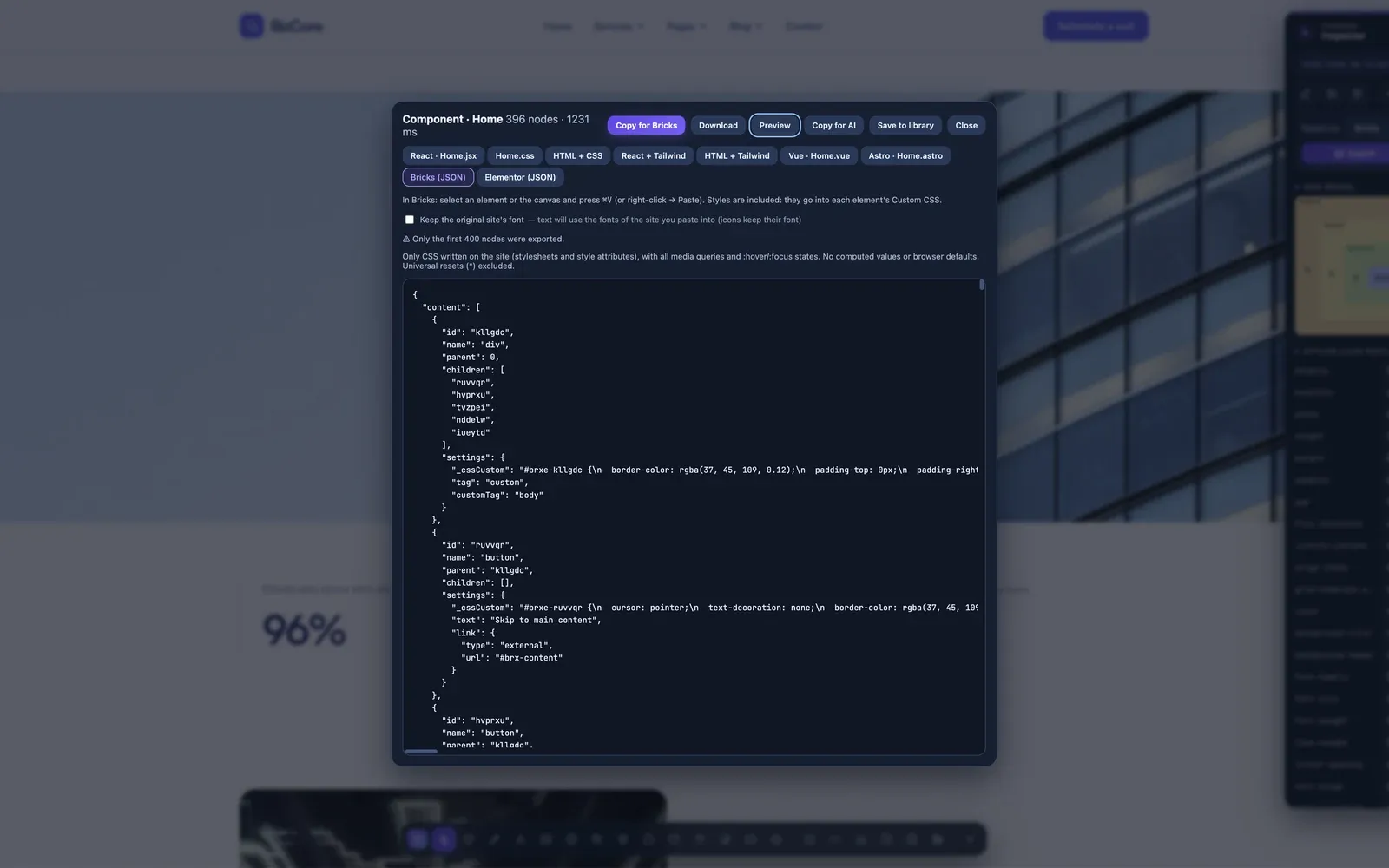
Pickode is a browser extension that makes Bricks Builder copy paste work from any website. Select a section, click Copy for Bricks, then select an element or the canvas in Bricks and press ⌘V (Ctrl+V): the section arrives as native Bricks elements with their original tags and styles in each element's Custom CSS. It's verified with Bricks 2.4.2.
How it works
Bricks export in three steps.
- TODO: media/features/bricks/step-1.mp4 · .webp01
Select the section
Open the inspector with Alt+I on any website and click the section you want to rebuild.
- TODO: media/features/bricks/step-2.mp4 · .webp02
Copy for Bricks
Choose Bricks in the export window and copy the section to the clipboard.
- TODO: media/features/bricks/step-3.mp4 · .webp03
Paste with ⌘V
In the Bricks editor, select an element or the canvas and press ⌘V (Ctrl+V). Every element shows up in the structure, ready to edit.
What you get
Native Bricks elements, not a pasted code block.
Real Bricks elements
Heading, Basic Text, Text Link, Button, Image, Icon and Div elements, each with the original HTML tag.
Native icons
Themify, Font Awesome and Ionicons icons become Bricks' native Icon element, not images or raw markup.
Styles and hover states kept
Styles go into each element's Custom CSS, and hover states on a parent (like
.card:hover .title) go into the parent's CSS.Your site's typography
The text font is not copied, so the section takes your site's fonts. You can keep the original font with one option.
Details
What the Bricks export includes.
- Elements
heading,text-basic,text-link,button,image,icon,div, with the original tag- Icons
- Themify, Font Awesome and Ionicons → native Icon element
- Styles
- In each element's Custom CSS with the
#brxe-<id>selector, realigned by Bricks on paste - Hover states
- States on ancestors (the parent's
:hover) written in the parent's CSS - Typography
- Text font-family not copied, so your site's typography applies; "Keep the original site font" option
- Paste
- ⌘V (Ctrl+V) on a selected element or the canvas
- Verified
- Bricks 2.4.2
Questions
Questions about Bricks export.
How do I copy and paste a section from a website into Bricks Builder?
Select the section with Pickode's inspector and click Copy for Bricks. Then in the Bricks editor select an element or the canvas and press ⌘V (Ctrl+V): the elements arrive in the structure with their styles applied.
Is it one code block or real Bricks elements?
Real elements. Headings, text, links, buttons, images, icons and divs arrive as native Bricks elements, each with its styles in its own Custom CSS.
What happens to icons?
Themify, Font Awesome and Ionicons icons become Bricks' native Icon element.
Will the section use my site's fonts?
Yes. The text font is not copied, so your site's typography applies. Turn on "Keep the original site font" to keep the source font instead.
Is it legal to copy a section from another site?
Pickode is for learning, inspiration, auditing and migrating sites you work on. Respect copyright and licenses, and don't republish others' designs, text or images without permission.
What should I check if paste doesn't work in Bricks?
Make sure you clicked Copy for Bricks in Pickode just before, and that an element or the canvas is selected in the Bricks editor when you press ⌘V (Ctrl+V). The Bricks export is verified with Bricks 2.4.2.
Keep exploring
Related features.
Stop rebuilding. Start picking.
Install Pickode, open any site and press Alt+I.
Free · 7-day Pro trial · No account needed