Clear one site's data, not your whole browser.
Wipe cookies, storage, caches and service workers for the site in the tab, reload without cache, and turn its images into lighter WebP files — all in your browser.
Free forever · 7-day Pro trial, no card · Chrome, Edge, Brave, Opera, Arc, Comet, Firefox
In short
Pickode is a browser extension that lets you clear site data in Chrome, Edge, Brave, Opera, Arc, Comet and Firefox for only the site open in the tab: cookies, local and session storage, IndexedDB, Cache Storage, service workers and HTTP cache, with a count of what's removed. You stay logged in everywhere else. Then hard reload, or optimize the page's images to WebP with Pro.
How it works
Debug in three steps.
 01
01Open Debug
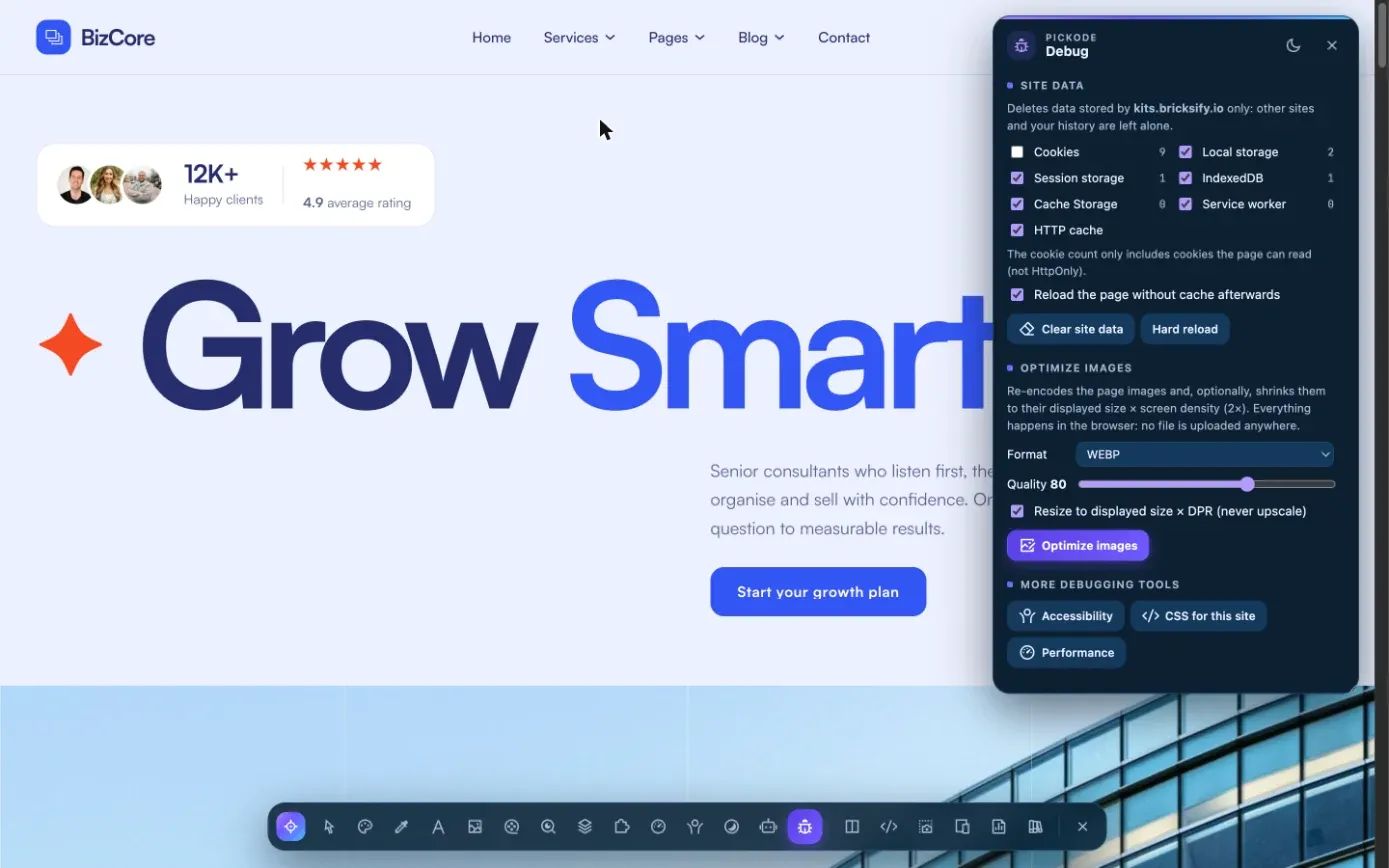
Open Pickode on the site you're working on and choose Debug. You see what's stored, with counts.
 02
02Clear what you need
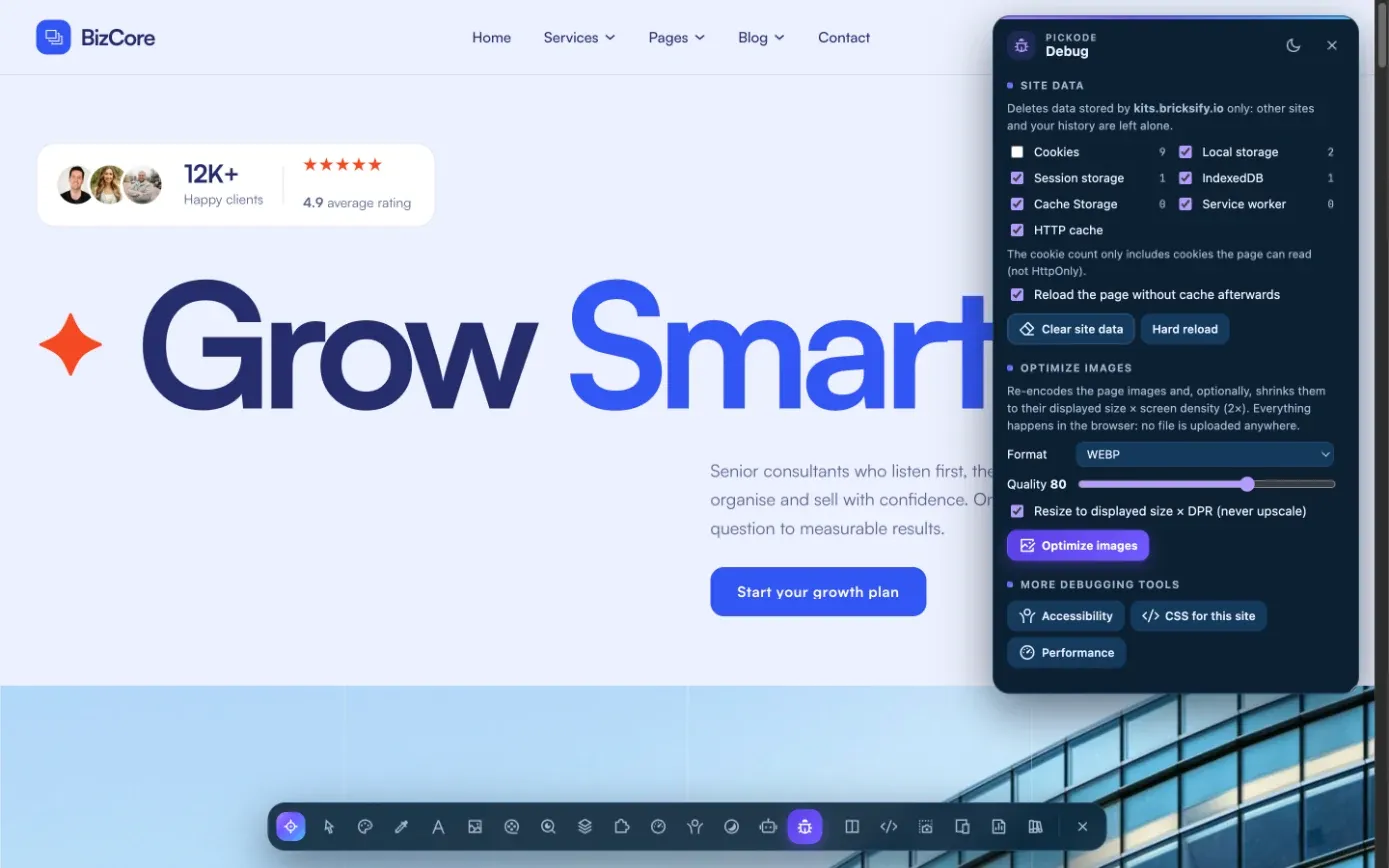
Pick cookies, storage, IndexedDB, Cache Storage, service workers or HTTP cache. Removing cookies always asks for confirmation.
 03
03Reload or optimize
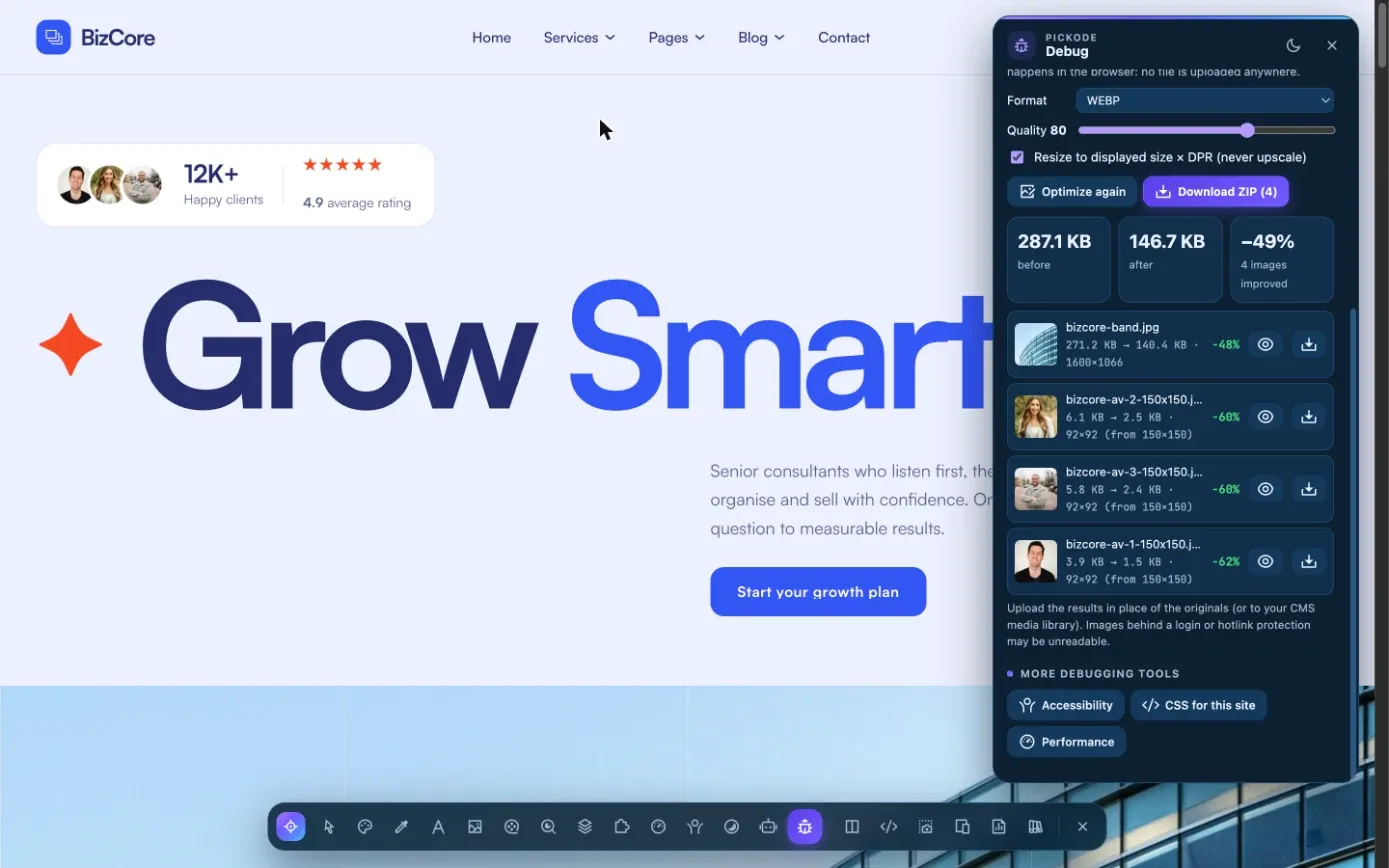
Reload the page without cache, or optimize its images and download them as a ZIP with Pro.
What you get
Clean cache testing and lighter images, without leaving the page.
Clear the cache for one site
Cookies, local and session storage, IndexedDB, Cache Storage, service workers and HTTP cache of the open site only, with counts.
Hard reload
Reload the page without cache to see the changes you just deployed.
WebP image optimizer
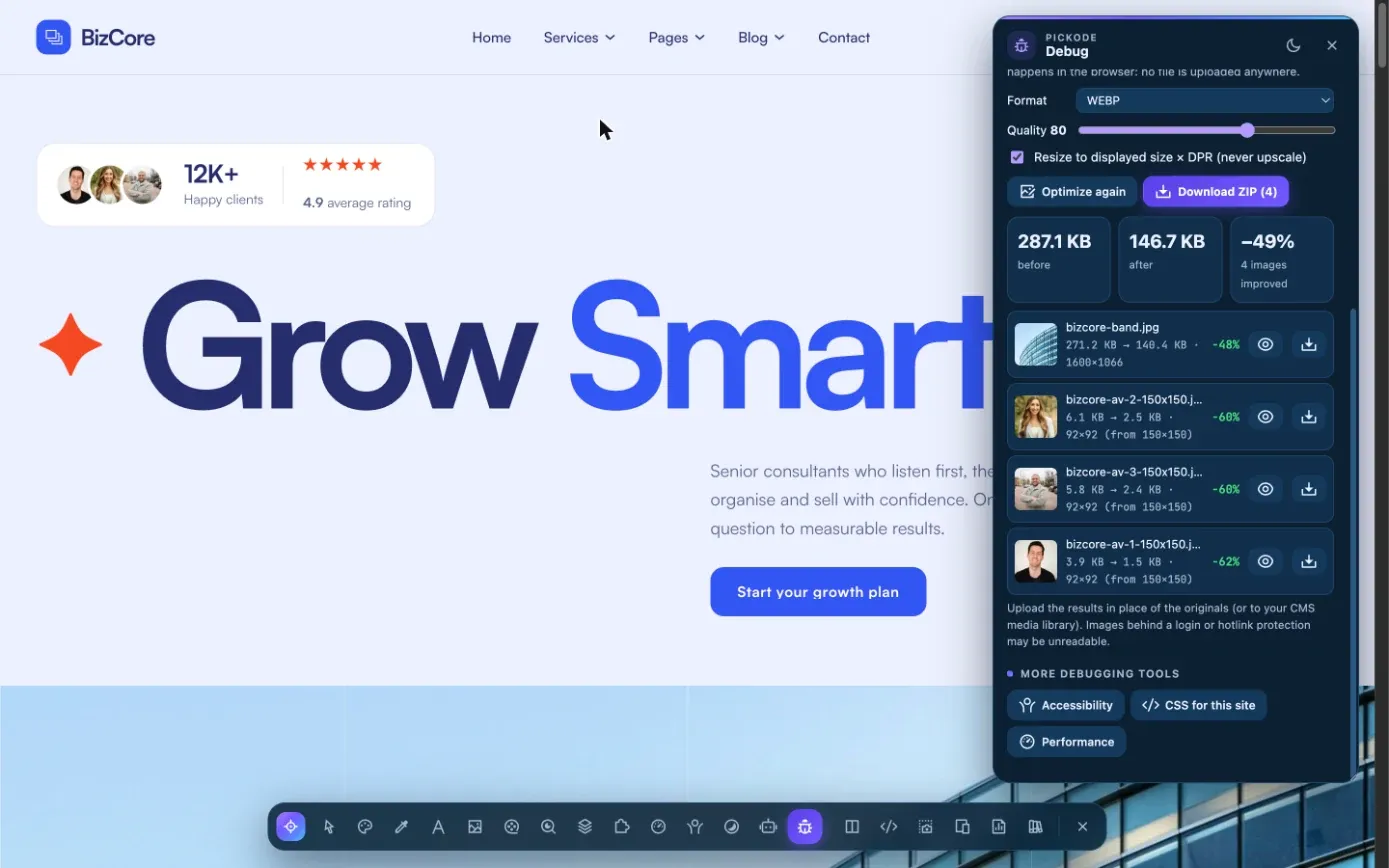
Compress website images to WebP or JPEG — AVIF where the browser can encode it — at quality 50–95, resized to the displayed size × screen density, never upscaled.
Before/after and ZIP
See the before/after and the saving for each image, then download everything as a ZIP with a CSV. Nothing is uploaded.
Details
What Debug can clear and optimize.
- Clears
- Cookies (with confirmation), local and session storage, IndexedDB, Cache Storage, service workers, HTTP cache — with counts
- Scope
- Only the site open in the tab
- Reload
- Hard reload without cache
- Image formats
- WebP or JPEG; AVIF where the browser can encode it
- Image settings
- Quality 50–95; resized to displayed size × screen density, never upscaled
- Output
- Before/after and saving per image; ZIP with a CSV; all in the browser, no upload
- Plan
- Clearing and hard reload are free; image optimization is Pro
- Permission
browsingData, used only to clear the open site's data when you ask
Questions
Questions about Debug.
Does "Clear site data" log me out everywhere?
No: only from the site open in the tab. In Chrome cookies are removed for the whole domain, subdomains included, and cookie removal always asks for confirmation.
Is Debug free?
Clearing site data and the hard reload are free. Optimizing images is part of Pro.
Are my images uploaded to a server?
No. Images are converted and resized in your browser and downloaded as a ZIP. Nothing is uploaded.
Which image formats can it create?
WebP or JPEG, and AVIF where your browser can encode it, with quality from 50 to 95.
Why does Pickode ask for the browsingData permission?
Debug uses it only to clear the data of the site open in the tab, and only when you ask.
How do I clear the cache and site data for one website only in Chrome?
Open Debug in Pickode and clear the site open in the tab: cookies (with confirmation), local and session storage, IndexedDB, Cache Storage, service workers and HTTP cache, with counts. In Chrome you can also do it by hand: click the icon to the left of the address bar, open Site settings and choose Delete data.
How do I delete cookies for a single site?
In Debug, clear the cookies of the site open in the tab: Pickode always asks for confirmation first. In Chrome cookies are removed for the whole domain, subdomains included.
Is it useful to clear the browser cache?
Yes, when you're testing changes on a site and want the latest files instead of cached ones. Debug's hard reload skips the cache, and clearing only the open site's data keeps you logged in everywhere else. In Firefox the HTTP cache can't be cleared for a single site.
Keep exploring
Related features.
Stop rebuilding. Start picking.
Install Pickode, open any site and press Alt+I.
Free · 7-day Pro trial · No account needed