Find the theme, plugins and builder behind any WordPress site.
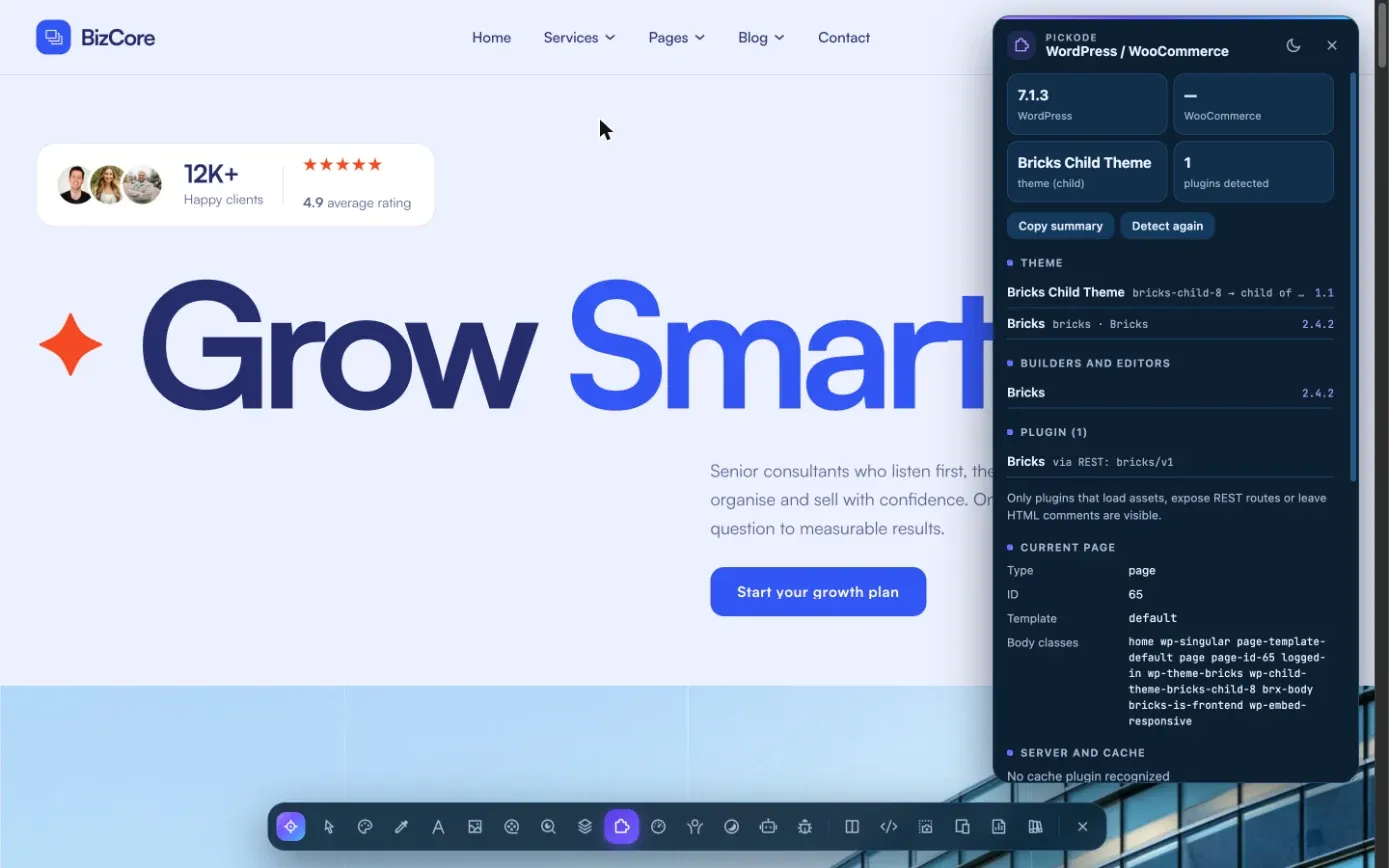
What WordPress theme is that? Pickode's WordPress panel tells you the WP version, theme and child theme, plugins with versions, the builder and the WooCommerce setup, without leaving the page.
Free forever · 7-day Pro trial, no card · Chrome, Edge, Brave, Opera, Arc, Comet, Firefox
In short
Pickode is a browser extension with a built-in WordPress theme detector: open any site and it shows the WP version, theme and child theme, plugins with their versions and the page builder in use. It works inside your browser on the page you're viewing, so it also reads WooCommerce details like the page type, the checkout type, products and currency. For non-WordPress sites, the tech stack panel answers "what CMS is this site?" with ~60 signatures.
How it works
WordPress panel in three steps.
 01
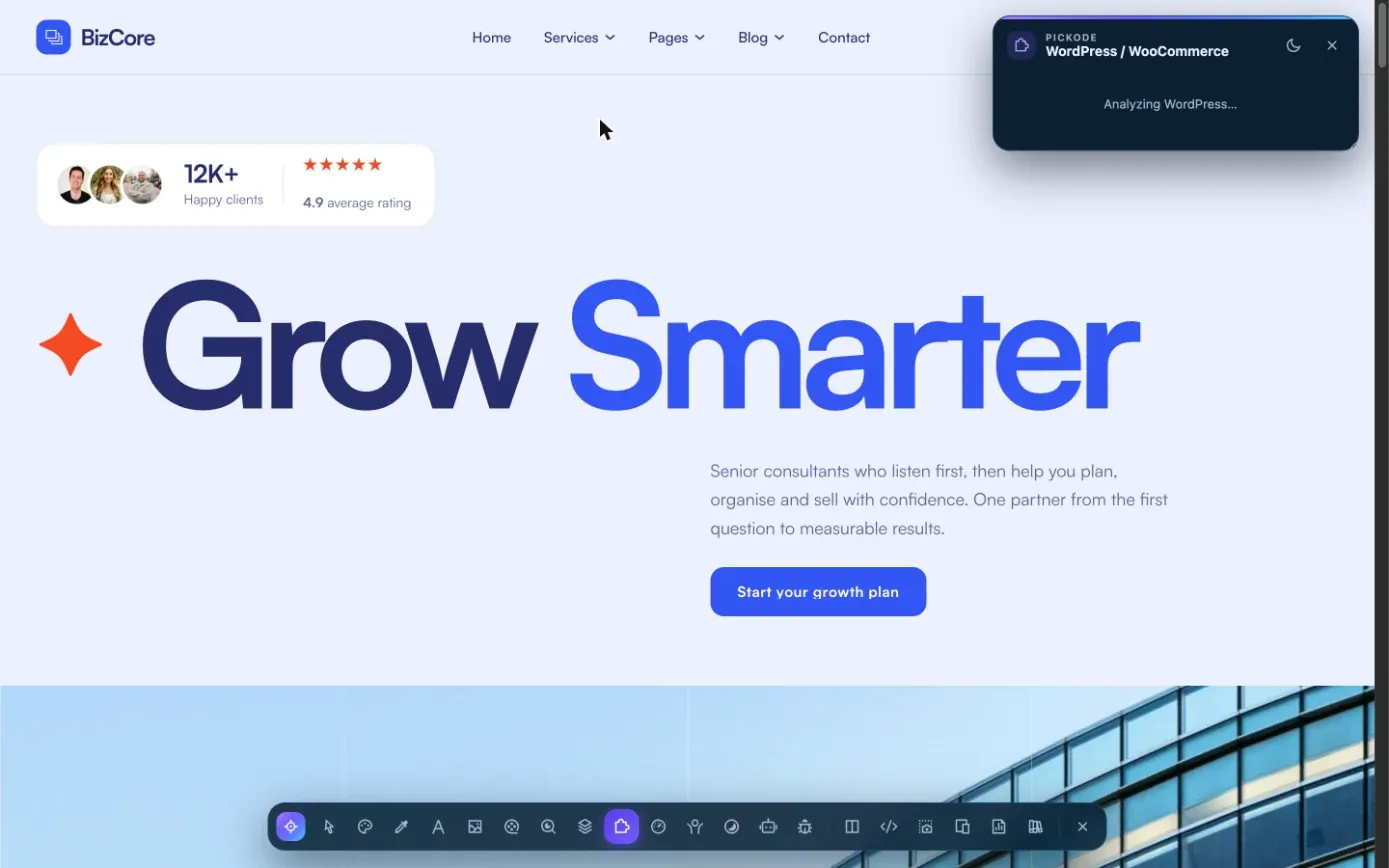
01Open the site
Visit the WordPress or WooCommerce page you want to check, in your own browser.
 02
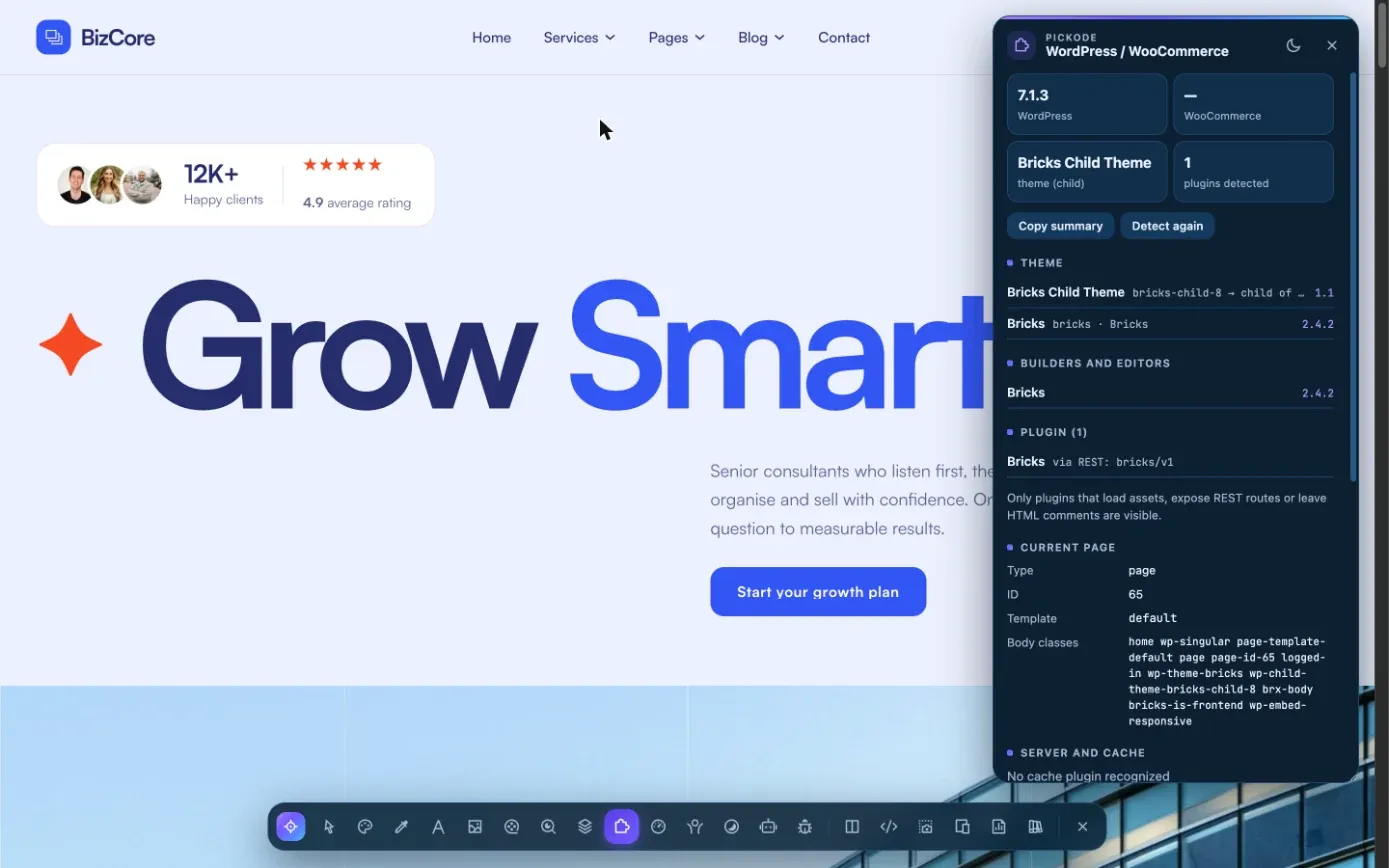
02Open the WordPress panel
In Pickode's Analyze section, open WordPress. The summary is free; the full panel is Pro.
 03
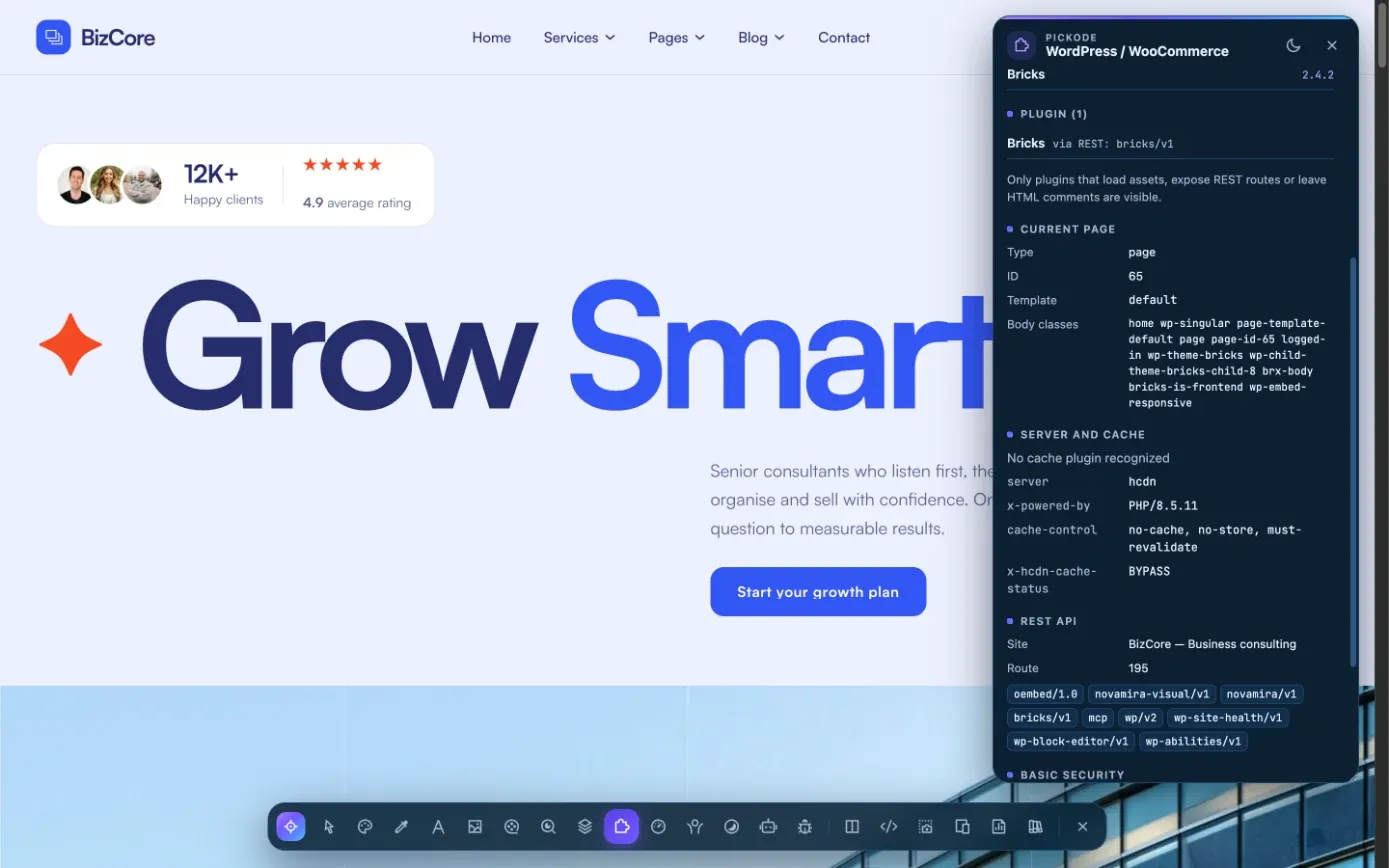
03Read theme, plugins and builder
See the theme, child theme, plugins with versions, builder, WooCommerce data and basic security checks. Add it all to a client report with Pro.
What you get
More than the theme name.
Theme and plugins with versions
WP version, theme and child theme, and plugins with their versions, found from assets, the REST API and HTML comments.
Builder and blocks
Detects Bricks, Elementor, Divi, Oxygen, Breakdance and Gutenberg, and lists the Gutenberg blocks used on the page.
WooCommerce detector
WooCommerce version, page type, block or classic checkout, products and currency from the Store API, cart fragments.
Server, cache and security
Server and cache headers, REST namespaces and basic security checks. The tech stack panel adds ~60 signatures for any site.
Details
What the WordPress panel detects.
- WordPress
- WP version, theme and child theme
- Plugins
- Plugins with version, from assets, REST API and HTML comments
- Builders
- Bricks, Elementor, Divi, Oxygen, Breakdance, Gutenberg (with the blocks used)
- WooCommerce
- Version, page type, block or classic checkout, products and currency (Store API), cart fragments
- Server
- Server and cache headers, REST namespaces, basic security checks
- Tech stack
- ~60 signatures: frameworks, CMS, builders, e-commerce, analytics, payments, live chat, fonts, CDN
- Plan
- Summary and tech stack free; full WordPress panel in Pro
Questions
Questions about WordPress panel.
How do I find out what WordPress theme a site uses?
Open the site, then open the WordPress panel in Pickode. It shows the theme and child theme, the WP version, the plugins with their versions and the builder.
Can it also detect WordPress plugins?
Yes, with their versions, but only plugins that leave traces in the frontend, such as their assets, REST namespaces or HTML comments. Plugins that work only in the admin stay invisible.
Does it work as a WooCommerce detector?
Yes. It shows the WooCommerce version, the page type, whether checkout uses blocks or the classic version, and products and currency from the Store API.
How is it different from a theme detector website?
It runs inside your browser on the page you're viewing, so it reads that page as you see it, WooCommerce page type included, and its results can go straight into a client report.
What's free and what's Pro?
The WordPress summary and the tech stack panel are free. The full WordPress panel, and the client report, are Pro.
How can I tell if a website uses WordPress?
Open the site and look at Pickode's WordPress panel or tech stack. If the site runs WordPress, the panel shows the WP version, the theme and the builder.
How can I find out what a website is built with?
The free tech stack panel recognizes about 60 signatures: frameworks, CMS, builders, e-commerce, analytics, payments, live chat, fonts and CDN.
Keep exploring
Related features.
- ProClient reportOne HTML report with scores, priorities, SEO, speed, accessibility, GEO and technologies. — Learn more
- ProBricks exportCopy any section and paste it into Bricks as native, editable elements. — Learn more
- ProElementor exportAny section as native, editable Elementor containers and widgets. — Learn more
Stop rebuilding. Start picking.
Install Pickode, open any site and press Alt+I.
Free · 7-day Pro trial · No account needed