Copy any section and paste it into Webflow
Pickode turns HTML into Webflow elements you paste in the Designer with ⌘V. Each element gets its own Webflow class, with breakpoints and states already set. No interactions, and images stay on the original site until you upload them.
Free forever · 7-day Pro trial, no card · Chrome, Edge, Brave, Opera, Arc, Comet, Firefox
In short
Pickode is a browser extension that takes HTML to Webflow from any live website. Select a section, click "Copy for Webflow", then in the Webflow Designer select an element or the Body and press ⌘V (Ctrl+V). Divs, headings, paragraphs, links, images and lists arrive as native Webflow elements, with styles in the Style panel. I've checked it in the Designer, section by section, against the source site.
How it works
Webflow export in three steps
 01
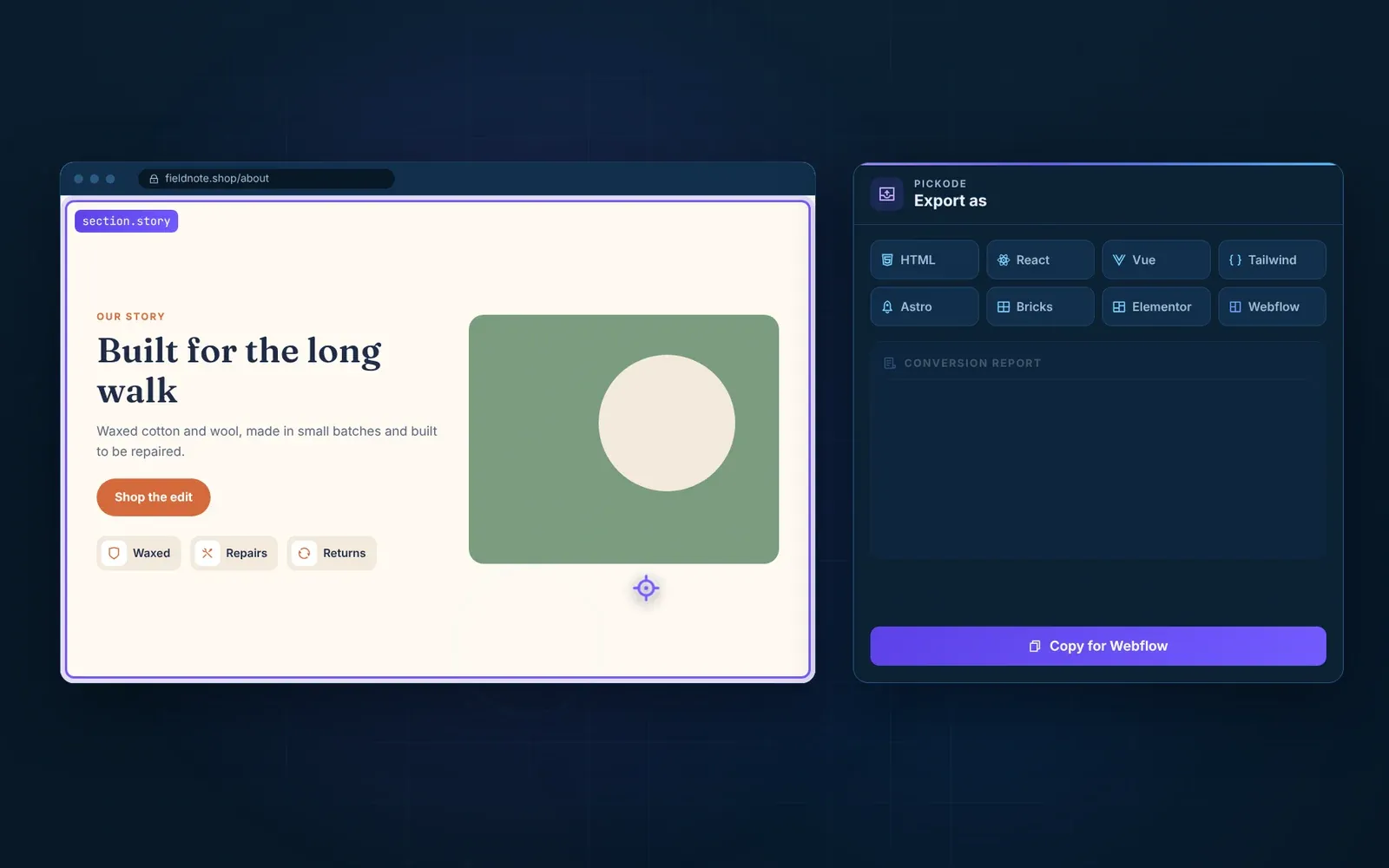
Select the section
Open the inspector with Alt+I on any website and click the section you want to rebuild.
 02
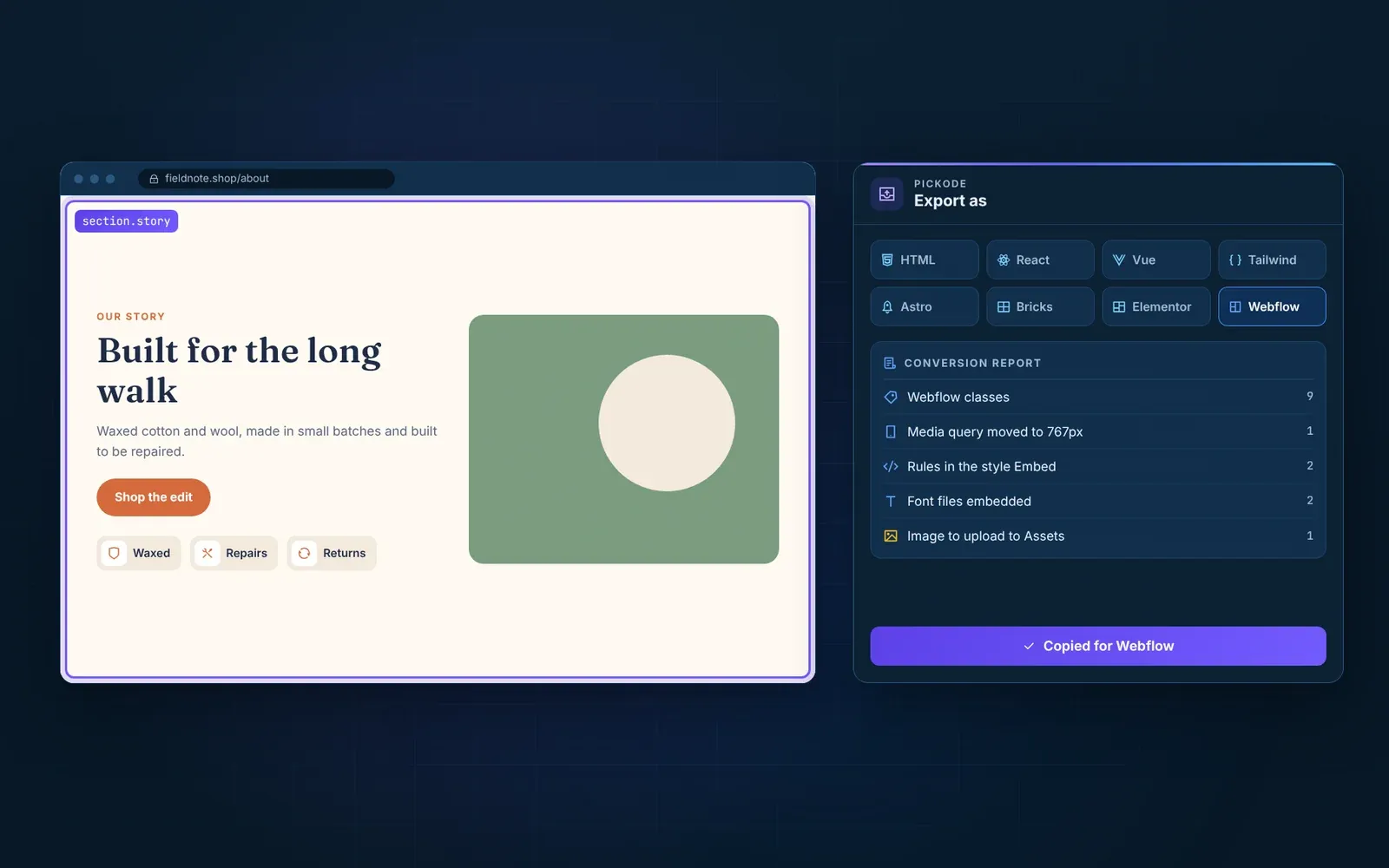
Copy for Webflow
Pick the Webflow tab in the export window, or "Export as" → Webflow in the inspector, and click "Copy for Webflow".
 03
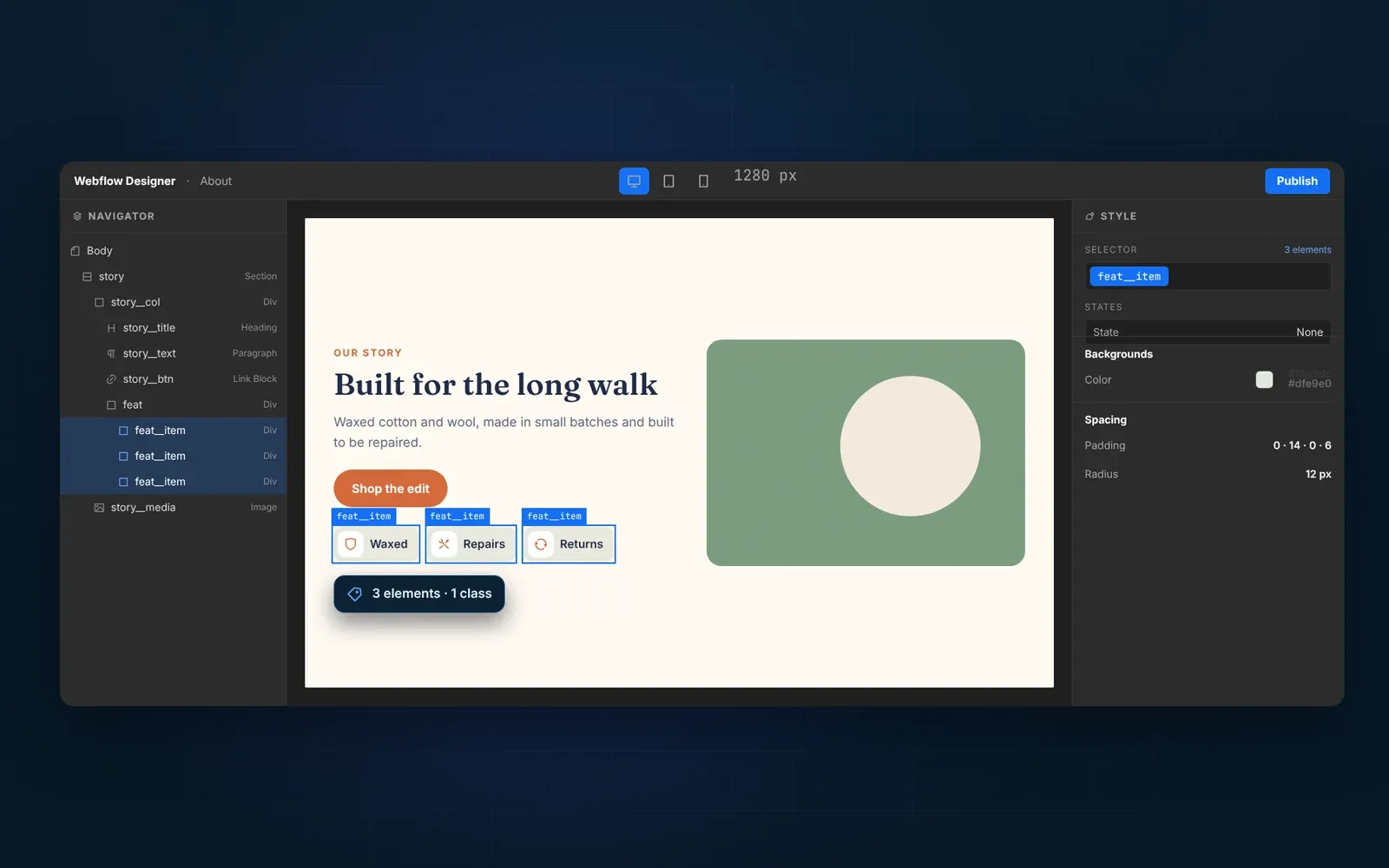
Paste with ⌘V
In the Webflow Designer, select an element or the Body and press ⌘V (Ctrl+V). The section shows up in the Navigator, ready to edit.
What you get
Native Webflow elements with classes, not one big Embed
Real Webflow elements
Div blocks (also section, header, footer, nav), Heading, Paragraph, Text Link, Link Block, Image, List, Blockquote and inline text. Other tags become a Div or Span that looks the same.
One class per element
Each element gets a Webflow class with a BEM-style name. Identical elements share the same class, so you edit them once.
Breakpoints and states
Media queries land on Webflow's breakpoints, and hover, pressed, focus, focus-visible, focus-within, ::before and ::after become states, also per breakpoint.
The rest in one style Embed
Styles Webflow has no place for go into a style Embed at the end of the block. They target data-pk attributes, so they keep working if Webflow renames a class.
Fonts and icon fonts
"Keep the original site's font" is on by default for Webflow: font files up to 36 KB each are embedded. Icon fonts are always embedded, cut down to the icons you use.
A conversion report
Above the code you see what happened: classes, CSS in the Embed, moved media queries, converted tags, fonts, and images to upload to Webflow's Assets.
Details
What the Webflow export includes
- Elements
- Div blocks (div, section, header, footer, nav, main, article, aside, address, figure), Heading, Paragraph, Text Link, Link Block, Image, List and List Item, Blockquote, Span, Strong, Emphasized, Line Break, Superscript, Subscript, Inline Code
- In an Embed with their HTML
- SVG, forms,
<button>, video, iframes and tables - Classes
- One Webflow class per element, BEM-style and lowercase; identical elements share a class
- Styles
- Longhand properties, the way Webflow writes them, so the Style panel reads them (gap included)
- Breakpoints
- ≤991, ≤767 and ≤479 px, plus ≥1280, ≥1440 and ≥1920 px (Webflow adds these to the site). A media query within 64 px of a Webflow breakpoint is moved onto it, and the report says so
- States
- hover, pressed, focus, focus-visible, focus-within, ::before and ::after, also combined with breakpoints
- Grids
repeat(N, …)written track by track, because Webflow's grid editor doesn't readrepeat(). auto-fit and auto-fill go into the style Embed- Units and base styles
- rem converted to px when the site's html isn't 16px; values Webflow's base styles would change are taken from the page
- Fonts
- "Keep the original site's font" (on by default): font files embedded up to 36 KB each, larger ones listed in the report to upload in Site settings → Fonts
- Sliders and animations
- Splide slide widths rebuilt for each breakpoint; scroll-animated elements copied in their final look
- Paste
- ⌘V (Ctrl+V) on a selected element or the Body in the Webflow Designer
- Library
- Saves the Webflow format and copies it again later
Questions
Questions about Webflow export
How do I copy a section from a website into Webflow?
Select the section with Pickode's inspector and click "Copy for Webflow". Then in the Webflow Designer select an element or the Body and press ⌘V (Ctrl+V). The section arrives in the Navigator as native elements with Webflow classes.
Is it real Webflow elements or one Embed?
Real elements. Divs, headings, paragraphs, links, images, lists and quotes arrive as native Webflow elements, each with its class in the Style panel. Only SVG, forms, `<button>`, video, iframes and tables go into an Embed with their HTML, plus one style Embed for the CSS Webflow has no place for.
Do Webflow interactions come along?
No. Pickode doesn't create Webflow interactions (IX2). When you open the export window, it scrolls through a section that doesn't fit on screen, so scroll-animated elements arrive in their final look, not hidden halfway through the animation.
Do I need a Webflow app or code to paste?
No. Pickode puts the section on the clipboard in the format the Webflow Designer reads, and you paste it with ⌘V (Ctrl+V).
What happens to fonts and images?
With "Keep the original site's font" (on by default for Webflow), font files up to 36 KB each are embedded, so the text looks the same right away. Larger ones are listed in the report: upload them in Site settings → Fonts and check the font license. Images stay linked to the original site until you upload them to Webflow's Assets.
What if my Webflow site already has a class with the same name?
Webflow renames the new one (for example `card` becomes `card-2`). The style Embed targets data-pk attributes, not class names, so those styles keep working.
Is it legal to copy a section from another site?
Pickode is for learning, inspiration, auditing and migrating sites you work on. Respect copyright and licenses, and don't republish others' designs, text or images without permission.
Is the Webflow export free?
It's Pro. On Free you see a partial preview and can't copy it. You can try it with the 7-day Pro trial, no card needed.
Keep exploring
Related features
- Website to codeAny section as React, HTML, Tailwind, Vue, Astro, Bricks, Elementor or Webflow., Learn more
- Website to codeAny section as React, HTML, Tailwind, Vue, Astro, Bricks, Elementor or Webflow., Learn more
- ProBricks exportCopy any section and paste it into Bricks as native, editable elements., Learn more
Try it on the next site you open
Install Pickode, open any site and press Alt+I.
Free · 7-day Pro trial · No account needed