Blog
How to download an m3u8 (HLS) video as MP4
Find the .m3u8 link in DevTools and save the HLS stream as one MP4 with ffmpeg, yt-dlp, VLC or an m3u8 downloader extension. Plus fixes for 403s and lost audio.
By Pickode12 min read
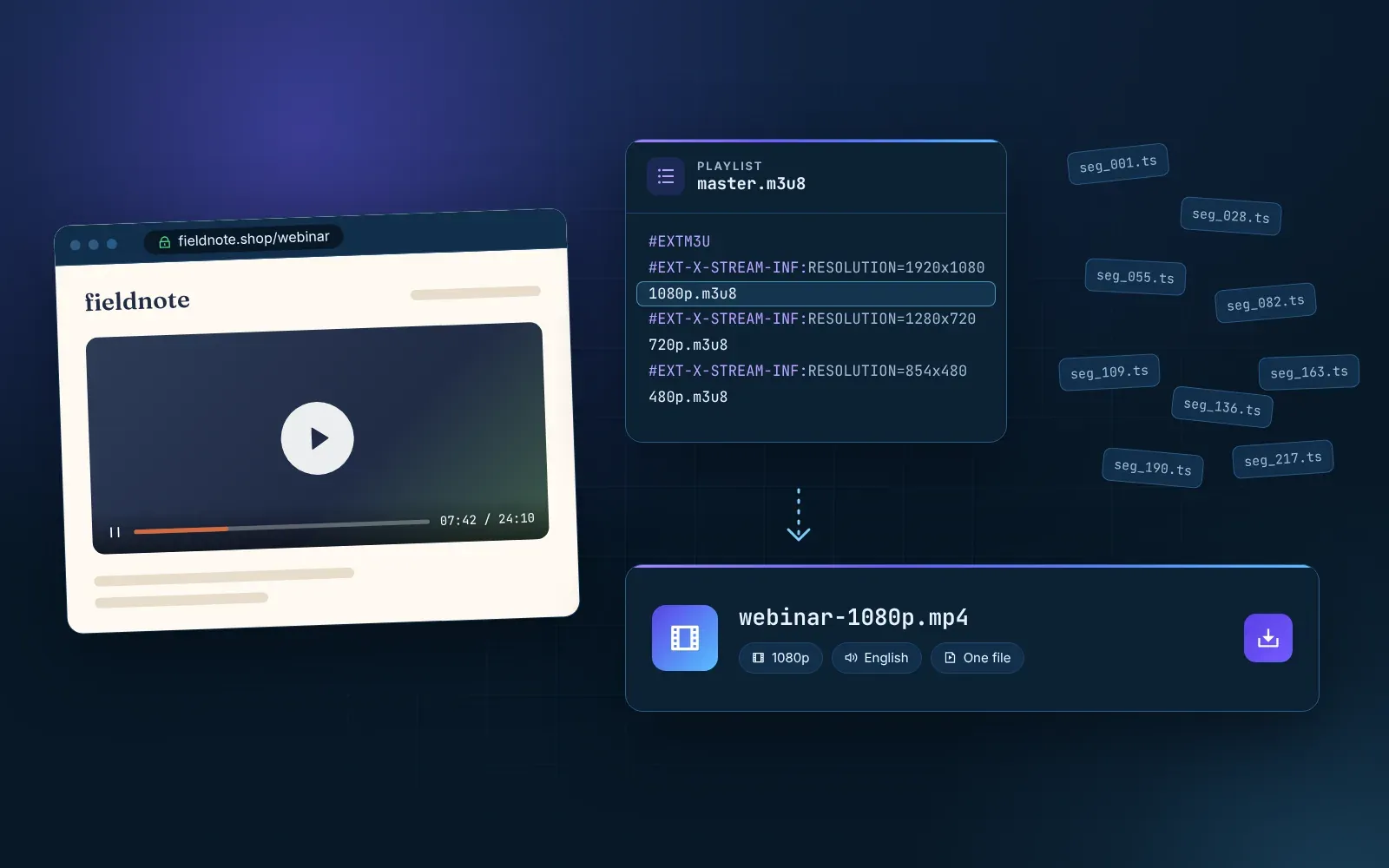
To download an m3u8 video, open DevTools on the page, go to the Network panel, type m3u8 in the filter box and start the video. Right-click the .m3u8 request, choose Copy, then Copy URL, and give that link to an m3u8 downloader: ffmpeg -i "URL" -c copy video.mp4 on the command line, yt-dlp, VLC, an online tool or a browser extension. Each one reads the playlist, downloads the segments and joins them into a single MP4. It works for streams without DRM. DRM is a different story, and I’ll get to it.
I run into HLS mostly with my own stuff and client work: a webinar recording that only exists on the streaming platform, a product video the client lost the master file for, a course I’m archiving for a client who owns it. Here’s how to find the playlist, which tool to use and what to do when the download stops with an error.
The quick answer: which m3u8 downloader for which job
| Method | Good for | Watch out for |
|---|---|---|
| ffmpeg | Any unprotected stream, scripts, best quality | Command line; needs the right headers on some sites |
| yt-dlp | Picking a quality from a list, parallel downloads | Needs ffmpeg to merge separate video and audio |
| VLC | No terminal, one video now and then | Converts at roughly playback speed and re-encodes by default |
| Online m3u8 downloader | A public link, nothing to install | Links that need cookies or headers, CORS errors |
| Browser extension | Finding the stream for you on the page you’re watching | Depends on the extension; DRM is out for all of them |
What an .m3u8 file actually is
HLS (HTTP Live Streaming) doesn’t send a video as one file. It cuts it into small segments, usually 2 to 10 seconds each, and lists them in a text file with the .m3u8 extension. The player reads the list and downloads the pieces one after the other. A 24-minute webinar cut into 6-second segments is about 240 files.
There are usually two levels of playlist. The master playlist lists the available qualities and, often, separate audio tracks:
#EXTM3U
#EXT-X-MEDIA:TYPE=AUDIO,GROUP-ID="aud",NAME="English",URI="audio-en.m3u8"
#EXT-X-STREAM-INF:BANDWIDTH=5000000,RESOLUTION=1920x1080,AUDIO="aud"
1080p.m3u8
#EXT-X-STREAM-INF:BANDWIDTH=2800000,RESOLUTION=1280x720,AUDIO="aud"
720p.m3u8
Each quality then has its own media playlist with the actual segments:
#EXTM3U
#EXT-X-TARGETDURATION:6
#EXTINF:6.0,
seg_001.ts
#EXTINF:6.0,
seg_002.ts
...
#EXT-X-ENDLIST
That’s why saving the .m3u8 file gives you a few hundred bytes of text and no video. And it’s why right-clicking the player usually doesn’t offer Save video as: the <video> element plays a blob: URL built in memory by JavaScript, not a file on the server.
Two lines in the playlist tell you a lot before you download anything:
#EXT-X-ENDLISTat the bottom means the video is complete (on demand). Without it you’re looking at a live stream that keeps growing.#EXT-X-KEYmeans the segments are encrypted. More on that in encrypted streams and DRM.
Find the m3u8 link in DevTools
-
Open DevTools with Cmd+Option+I on a Mac (F12 or Ctrl+Shift+I on Windows) and go to the Network panel.
-
Filter by m3u8. Type
m3u8in the Filter box. Leave the type set to All: players like hls.js load playlists with XHR, so they don’t show up under Media. -
Play the video. If it was already playing, reload the page and press play again. The playlist requests appear as the player starts.
-
Pick the master playlist. It’s usually the first
.m3u8request, and its Response tab shows#EXT-X-STREAM-INFlines. If you only see one playlist, that’s fine too. -
Copy the URL. Right-click the request, choose Copy, then Copy URL.
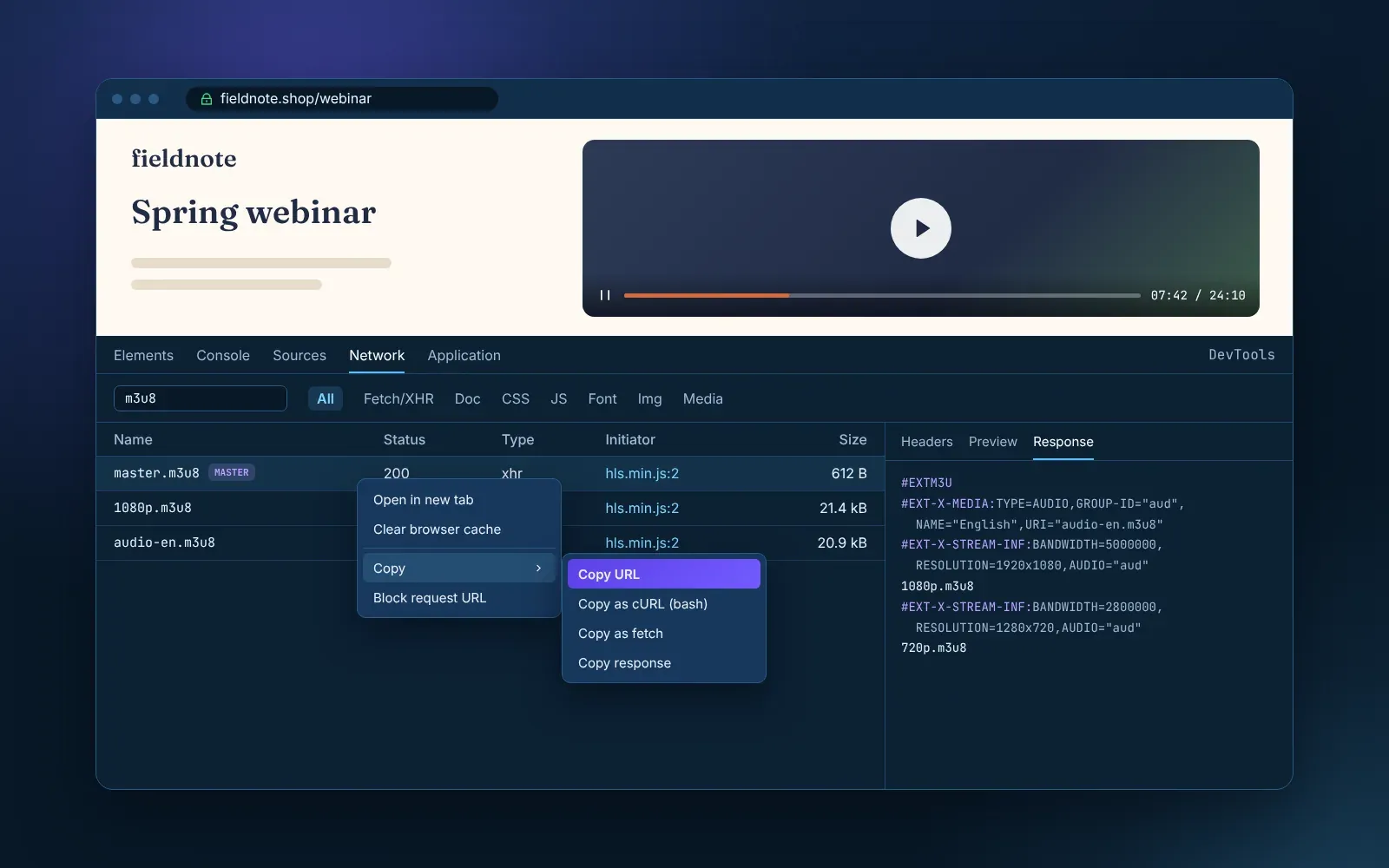
If the filter shows nothing, try mpd. That’s DASH, the other common streaming format, and it works the same way with ffmpeg and yt-dlp.
While you’re in that menu, Copy as cURL (bash) is worth knowing. It copies the request with every header the browser sent, including Referer and cookies, which is exactly what you need when a site answers your download with a 403.
Method 1: ffmpeg (free, best quality)
ffmpeg is the tool most of the others use under the hood. Install it (brew install ffmpeg on a Mac, winget install Gyan.FFmpeg on Windows) and run:
ffmpeg -i "https://fieldnote.shop/webinar/master.m3u8" -c copy webinar.mp4-c copy copies the audio and video as they are, without re-encoding. The download is as fast as your connection and the quality is the original. When you give it a master playlist, ffmpeg picks the highest resolution and the best audio track on its own.
A few variations I use:
# A specific quality: point to that variant's playlist
ffmpeg -i "https://fieldnote.shop/webinar/720p.m3u8" -c copy webinar-720p.mp4

# Video and audio in separate playlists: pass both and map them
ffmpeg -i "https://fieldnote.shop/webinar/720p.m3u8" \
  -i "https://fieldnote.shop/webinar/audio-en.m3u8" \
  -map 0:v -map 1:a -c copy webinar-720p.mp4

# The site checks where the request comes from: send the page's Referer
ffmpeg -headers "Referer: https://fieldnote.shop/webinar" \
  -i "https://fieldnote.shop/webinar/master.m3u8" -c copy webinar.mp4
-headers goes before -i, or ffmpeg ignores it. If an old ffmpeg build stops with “Malformed AAC bitstream”, add -bsf:a aac_adtstoasc before the output file name. Recent versions add it automatically.
Method 2: yt-dlp
yt-dlp is known for video sites, but it also takes a plain .m3u8 link. Its advantage is that it shows you the available qualities first:
# List the qualities and audio tracks in the playlist
yt-dlp -F "https://fieldnote.shop/webinar/master.m3u8"

# Best video plus best audio, 5 segments at a time, as MP4
yt-dlp -f "bv*+ba/b" -N 5 --merge-output-format mp4 \
  "https://fieldnote.shop/webinar/master.m3u8"
-N 5 downloads 5 segments in parallel, which helps a lot on long videos. yt-dlp needs ffmpeg installed to merge separate video and audio. For sites that check headers, add --referer "https://fieldnote.shop/webinar".
Method 3: VLC, without a terminal
VLC can open an .m3u8 link and save it to a file:
-
Open the converter. In VLC, choose Media, then Convert / Save (on a Mac: File, then Convert / Stream).
-
Paste the link. Go to the Network tab and paste the
.m3u8URL. -
Pick a profile. Choose Video - H.264 + MP3 (MP4) and a destination file, then start.
It works, with two limits. VLC reads the stream at roughly playback speed, so a 1-hour video takes about an hour. And the profile re-encodes the video, which costs some quality. For one short clip now and then it’s fine. For anything longer, ffmpeg is faster and keeps the original.
Method 4: online m3u8 downloaders
You paste a link, the site downloads the segments and gives you an MP4. Convenient for a public test stream. The catch is where the download happens:
- Tools that download on their own server don’t have your cookies or session. Links with an expiring token, links tied to your IP and anything behind a login fail.
- Tools that download in your browser run on a different domain from the video. Many streaming servers only allow requests from their own site (CORS), so the segments get blocked.
Also think about what you’re pasting. A signed .m3u8 link often contains a token that gives access to the video. I’d rather not hand that to a site I don’t know, especially for a client’s content.
Method 5: a browser extension
An extension runs on the page you’re already watching. It sees the playlist in the page’s network requests, so you don’t have to dig through DevTools. That’s what I built into Pickode: the streaming video part of the asset panel is an m3u8 downloader and a DASH downloader that work in your browser.
-
Open the asset panel with Alt+A and go to the Video tab. Pickode lists the HLS (
.m3u8) and DASH streams it found in the page’s network requests, next to the regular video files. -
Choose quality and audio. Pick the resolution and, when the stream has separate tracks, the audio language.
-
Save as MP4. Pickode downloads 5 segments at a time and joins them into one MP4 file, all in the browser. If a few segments don’t arrive, you can retry just those.
It handles TS and fMP4 segments, byte ranges, discontinuities, separate audio tracks, and subtitles. WebM and HEVC streams end up in one file too, without re-encoding, and the result is a regular MP4 that opens in QuickTime and video editors. A few honest notes. Subtitles are saved as a .vtt file next to the video, not inside it. Files over 2 GB are split into parts of about 2 GB. Very long videos need a lot of memory, because the joining happens in the browser.
When the download fails
403 Forbidden or 404 after a few minutes
The playlist URL often contains a token that expires, or the server checks the Referer, the Origin or a cookie. Copy a fresh URL from DevTools and download right away. If that’s not enough, use Copy as cURL to see which headers the browser sends, and pass the same ones to ffmpeg with -headers or to yt-dlp with --add-header.
Video but no sound
The audio lives in its own playlist (the #EXT-X-MEDIA:TYPE=AUDIO line). If you gave the tool the variant playlist (720p.m3u8), it only saw the video. Use the master playlist, or pass the video and audio playlists together as in the ffmpeg example above.
Only a few seconds of video, or a download that never ends
No #EXT-X-ENDLIST at the bottom of the media playlist means it’s a live stream. ffmpeg records it as it goes until you stop it with Ctrl+C.
The download stops halfway
On long videos the token in the URL can expire before the last segments are downloaded. Copy a fresh URL and start again, and download more segments at once so it finishes sooner: -N 5 in yt-dlp, or 5 in parallel in Pickode.
Encrypted streams and DRM
Open the media playlist and look for #EXT-X-KEY. If it’s there, the segments are encrypted. With DRM, the key comes from a license server inside a protected module of the browser (Widevine, FairPlay, PlayReady): that’s how streaming services and paid platforms protect their catalog, and there’s no legitimate way to save a copy. Getting around DRM is illegal in many countries (the DMCA in the US, the InfoSoc Directive in the EU).
Encrypted or not, what decides is your right to keep a copy. If a stream you have the rights to is protected, the cleaner route is asking the owner or the platform for the original file.
Is it legal to download an m3u8 video?
The format has nothing to do with it. HLS is just how the video travels. What matters is whether you have the right to keep a copy: your own recordings, a client’s videos you work on, content under a license that allows downloads. Many platforms forbid downloading in their terms even when the stream isn’t encrypted.
FAQ
What is an m3u8 downloader?
A tool that reads an .m3u8 playlist, downloads all the segments it lists and joins them into one video file, usually MP4. ffmpeg, yt-dlp, VLC, online tools and browser extensions like Pickode all do this in different ways.
How do I convert m3u8 to MP4?
You don’t convert the .m3u8 file itself, because it’s only a list of links. Give its URL to ffmpeg with ffmpeg -i "URL" -c copy video.mp4: it downloads the segments and writes an MP4 without re-encoding.
How do I find the m3u8 URL of a video?
Open DevTools, go to the Network panel, type m3u8 in the filter and play the video. Right-click the request and choose Copy, then Copy URL. Take the master playlist if there’s more than one.
Why does my downloaded video have no audio?
The stream keeps audio in a separate playlist. Download from the master playlist, or pass the video and audio playlists together to ffmpeg with -map 0:v -map 1:a.
Can I download an encrypted or DRM-protected m3u8?
If the playlist contains #EXT-X-KEY, the stream is encrypted. With DRM (Widevine, FairPlay) there’s no legitimate way to save it: if you have the rights to the video, ask the owner for the original file.
Is there an m3u8 downloader for Chrome?
Yes. Pickode includes an HLS and DASH downloader in its asset panel, for Chrome, Edge, Brave, Opera, Arc, Comet and Firefox 140+. It finds the stream on the page, lets you choose quality and audio and saves one MP4. Streaming video is a Pro feature with a 7-day trial.
If you save your own webinars or clients’ videos often, install Pickode, open the page with the video and press Alt+A. The streaming video docs list every supported format.