Blog
What font is this website? 3 ways to find out
Find the font a website really renders, not just the CSS font-family: DevTools, the Network panel or a font finder extension. Plus fonts in images and licenses.
By Pickode10 min read
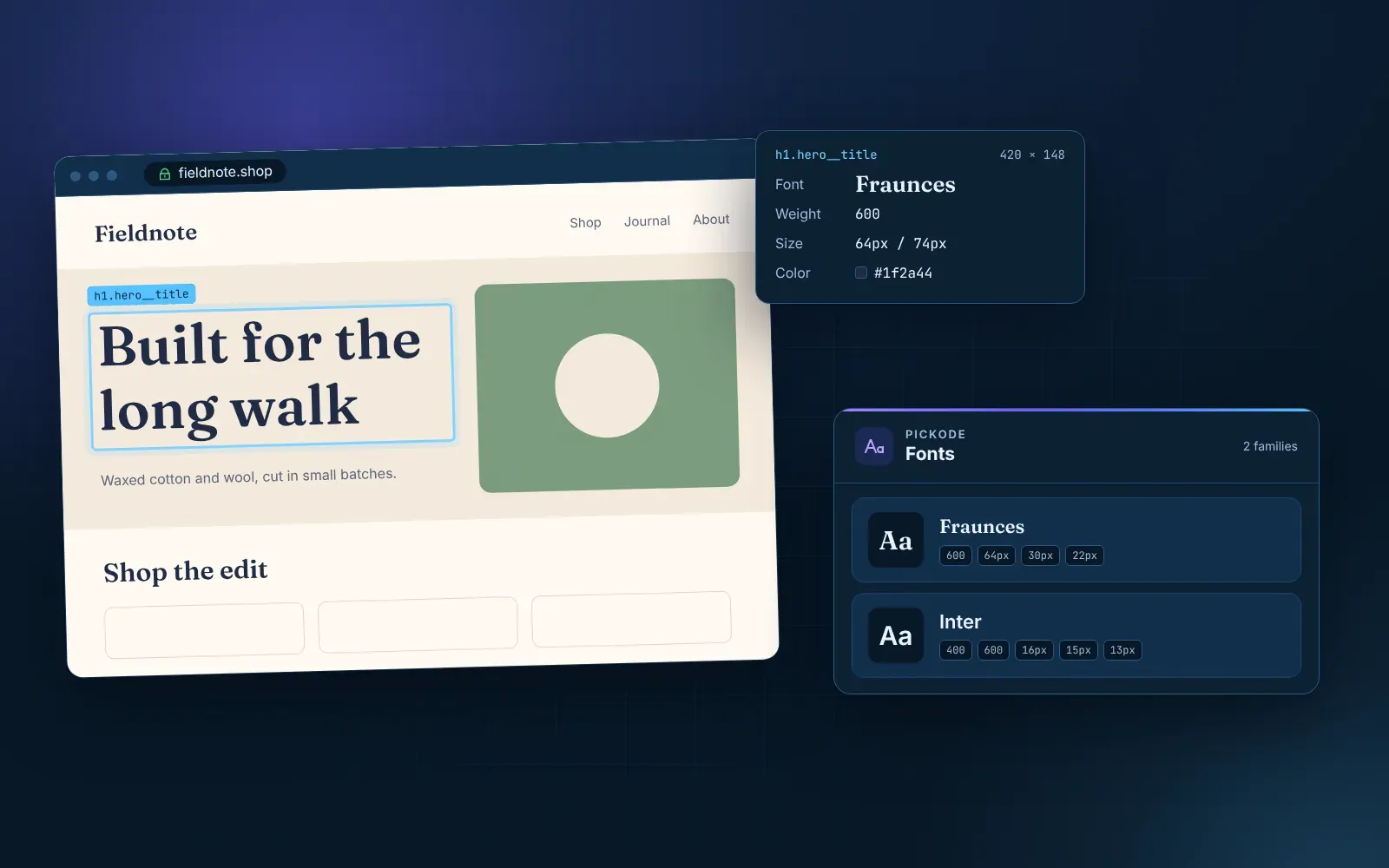
To find out what font a website uses, right-click the text and choose Inspect. In Chrome and Edge, open the Computed tab and scroll to the bottom: Rendered Fonts shows the font that’s actually drawing that text. In Firefox, the Fonts tab in the Inspector does the same. That’s more reliable than the font-family line in Styles, which lists the fonts the designer asked for, not the one you’re looking at. If you check fonts often, a font finder extension like WhatFont or Pickode shows the name when you hover. And if the text is part of an image or a logo, none of this works and you need an image-based identifier.
I get asked “what font is this?” by clients all the time, usually with a link to a competitor’s site and “something like this”. Here are the 3 ways I check, what each one misses and what to do when the answer is a name you can’t use.
The quick answer: which method for which case
| Method | Good for | What it misses |
|---|---|---|
| DevTools, Rendered Fonts / Fonts tab | The exact font of one piece of text, no install | Every text one at a time; slow on a whole page |
DevTools, Network panel and @font-face |
Where the font comes from, the files and weights loaded | Which element uses which font |
| A font finder extension | Hovering text and reading the font, the whole type system of a page | Text in images, logos and outlined SVG |
| Image-based identifiers | Logos, screenshots, photos, PDFs | Usually a “close match”, not always the exact font |
Why the CSS font-family isn’t the answer
Open Styles in DevTools and you’ll see something like this:
.hero__title {
  font-family: "Fraunces", Georgia, serif;
}
That’s a fallback list. The browser uses the first font in the list that’s available and has the glyphs it needs. If Fraunces loaded, you’re looking at Fraunces. If it failed, was blocked or isn’t loaded yet, you’re looking at Georgia, or at whatever serif font your system has. Three more cases where the name lies:
system-uiand-apple-systemaren’t fonts, they’re “use the operating system’s font”. The same page shows SF Pro on a Mac and Segoe UI on Windows.- Self-hosted fonts can have any name.
@font-face { font-family: "Brand Sans"; src: url(/fonts/inter-var.woff2) }is valid CSS. The CSS says Brand Sans, the file is Inter. - Adobe Fonts uses its own lowercase names, like
proxima-novaorff-tisa-web-pro, which you’ll need to translate back to the font’s real name.
So the question isn’t “what does the CSS say?” but “what’s being rendered?”. The browser knows, and the first method asks it directly.
1. DevTools: the font that’s actually rendered
-
Right-click the text and choose Inspect. DevTools opens with that element selected. If it lands on a
<span>inside a heading, that’s fine: it’s the text you clicked. -
Chrome and Edge: Computed tab. Next to Styles, open Computed and scroll to the bottom. Under Rendered Fonts you’ll see the family name, whether it’s a “Network resource” (a web font the page downloaded) or a “Local file” (a font from your computer), and how many glyphs it drew.
-
Firefox: Fonts tab. In the Inspector’s right panel, open Fonts. “Fonts Used” lists the fonts of the selected element, with the file they come from. Further down, “All Fonts on Page” lists every font the page uses.
-
Safari: Font panel. In Web Inspector, select the element and open Font in the right sidebar.
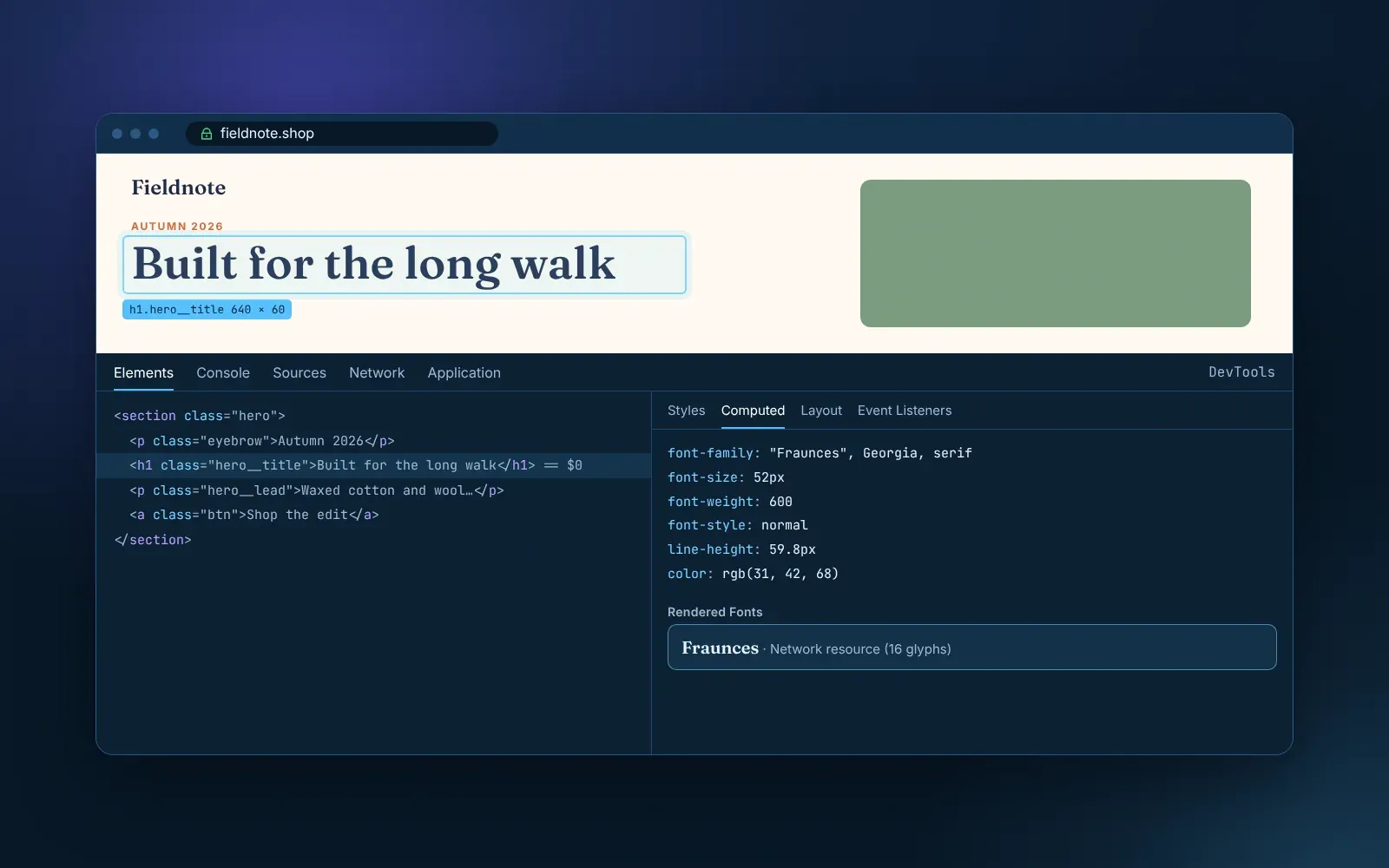
If Rendered Fonts shows a “Local file” with a name like Georgia or Times, the web font didn’t load and you’re seeing a fallback. Reload the page, or look for a blocked request in the Network panel.
While you’re in Computed, the lines above give you the rest of the type: font-size, font-weight, line-height, letter-spacing and color. That’s usually what a client actually means by “the same font”: the font, plus how it’s set.
2. Network panel and @font-face: where the font comes from
The name is half the answer. The other half is where the font comes from, because it tells you how you can use it.
-
Open the Network panel in DevTools and click the Font filter.
-
Reload the page. Web fonts load with the page, so they only show up if the panel was open while it loaded.
-
Read the domain.
fonts.gstatic.comis Google Fonts.use.typekit.netis Adobe Fonts. The site’s own domain or its CDN means the fonts are self-hosted. Other font services have their own domains, and the file name often gives the family away (inter-latin-wght-normal.woff2).
To see the name the site gives each file, look at the @font-face rules. In Chrome, search all the loaded CSS with Cmd+Option+F on a Mac (Ctrl+Shift+F on Windows) and type @font-face:
@font-face {
  font-family: "Fraunces";
  src: url("/fonts/fraunces-latin-wght-normal.woff2") format("woff2");
  font-weight: 100 900;
  font-display: swap;
}
font-weight: 100 900 means it’s a variable font: one file covers every weight from 100 to 900. Useful to know before you buy or download 9 separate files.
3. A font finder extension: the font on hover
DevTools works, but it’s 4 clicks per piece of text. When I’m studying a whole page, or a client sends me 3 sites they like, I use an extension that shows the font as I move the mouse. That’s the font finder in Pickode, and it’s free.
-
Hover the text. Press Alt+I to turn on the inspector and point at a heading or a paragraph. The tooltip shows the font, weight, size and line height, color and WCAG contrast.
-
Open Fonts. It lists every family on the page with the weights and sizes in use. Handy when you want the whole type scale, not one heading.
-
Check what’s loaded. Pickode also shows the
@font-facefonts the page actually loads, with the file behind each name, so a renamed self-hosted font or a web font that never loaded doesn’t fool you.
The fonts panel and the hover tooltip are in the free version. With Pro, the assets panel (Alt+A) also lets you download the font files, labeled with family and weight from @font-face. Pickode runs on Chrome, Edge, Brave, Opera, Arc, Comet and Firefox 140+.
The limit: Pickode reads the fonts a page loads and uses. It doesn’t recognize fonts in images or PDFs, and it doesn’t run on chrome:// pages or the Chrome Web Store.
When the text is an image, a logo or an SVG
A lot of the “what font is this?” moments on a website aren’t about text at all: the logo, a hero banner made in Photoshop, a headline exported as SVG. For the browser those are pictures, so DevTools and font finder extensions have nothing to read.
- SVG with real
<text>is the exception: inspect it and you’ll findfont-familylike on any other element. If the SVG is all<path>elements, the letters were converted to shapes and the font name is gone. - Images, logos and screenshots go into an image-based identifier. WhatTheFont (MyFonts), the Fontspring Matcherator and the visual search in Adobe Fonts all work the same way: upload the image, select the text, get a list of candidates.
Expect candidates, not a verdict. Logos are often custom lettering or a font that’s been modified, so the best you get is something close. Crop tight around one line of text, use a large image and pick a sample with distinctive letters (a, g, R, Q) for better matches.
Can you use the font you found?
Finding the name doesn’t give you the right to use it. The font file a site loads was licensed for that site, and downloading it from their server doesn’t move the license to you.
- Google Fonts are under open licenses (mostly the SIL Open Font License): free for personal and commercial projects, including client sites.
- Adobe Fonts are included in Creative Cloud plans and are used on your own domains through your account.
- Commercial fonts need a web license, often priced by monthly page views. The foundry’s site lists the options.
If the font is out of budget, search for an alternative with a similar structure. For many popular paid fonts there’s a free one on Google Fonts that gets you most of the way.
FAQ
How do I find out what font a website uses?
Right-click the text, choose Inspect, open the Computed tab and look at Rendered Fonts (Chrome, Edge) or the Fonts tab (Firefox). That’s the font being drawn. For a whole page, a font finder extension like Pickode shows the font on hover and lists every family, weight and size.
Is there a free font finder Chrome extension?
Yes. Pickode’s font finder, the hover tooltip and the fonts panel, is free. It also works in Edge, Brave, Opera, Arc, Comet and Firefox 140+. Downloading the font files is part of Pro.
Why is the font in the CSS different from the one I see?
font-family is a list of fallbacks. If the first font didn’t load, the browser shows the next one. The name can also be an alias given in @font-face. Rendered Fonts in DevTools shows the font actually used.
Can ChatGPT identify a font?
From a screenshot, AI tools can suggest fonts that look similar, the same way image identifiers do, and they can be wrong. For a live website you don’t need to guess: the browser knows which font it’s rendering, and DevTools or a font finder extension reads it from the page.
How do I identify the font in a logo?
Logos are usually images or outlined SVG, so the font isn’t in the page’s code. Upload a cropped screenshot to an image-based identifier like WhatTheFont or the Fontspring Matcherator. Many logos use custom or modified lettering, so expect a close match rather than the exact font.
Is Pickode a WhatFont alternative?
Pickode identifies fonts on hover in its inspector and lists every family, weight, size and loaded @font-face of the page, alongside other inspection tools such as the color picker and live CSS editing. The font finder is free.
If you check fonts on other people’s sites more than once a week, install Pickode, press Alt+I and hover the next heading you’re curious about. The inspector docs cover the tooltip and the fonts panel.